
Why You Should Offer Free Shipping on Amazon FBM
If you're selling products on Amazon using Fulfilled by Merchant (FBM) and you're charging customers separately for standard shipping, you're probably selling a lot less than you could be.
We've tested this repeatedly with our clients at Five Star Commerce, and we've consistently found that raising the product price and offering free shipping results in more sales than charging a lower product price plus a separate shipping fee.
The interesting part is that the customer can end up paying the exact same amount either way.
For example, if you're currently selling a product for $24.99 and charging $4.99 for shipping, the customer pays $29.98 total.
Instead, you could price that same product at $29.98 and offer free standard shipping. The customer still pays $29.98, but in our experience, the product is much more likely to sell.
There's virtually no reason to charge separately for standard shipping on Amazon. In most cases, you're better off building the shipping cost into the product price.
I'll explain why this works, share an example from one of our clients who saw a 20–30% increase in sales after making this change, and walk through exactly how to set up free shipping in Amazon Seller Central.
I'll also explain a few important details about Amazon's pricing rules, shipping templates, and what to do if you're currently charging different shipping amounts based on product weight.
Why Free Shipping on Amazon Can Increase Your Sales
Customers generally prefer seeing a product with free shipping rather than having an additional shipping charge added to their purchase.
Even when the total amount is identical, the way that price is presented can affect whether someone decides to buy.
Here's an example.
Let's say you're selling a product on Amazon for $24.99, and your shipping settings charge customers an additional $4.99 for standard shipping.
The customer sees the following:
| Comparison | Charging for Shipping | Offering Free Shipping |
|---|---|---|
| Product price | $24.99 | $29.98 |
| Standard shipping | $4.99 | $0.00 |
| Total customer pays | $29.98 | $29.98 |
| Customer sees | Additional shipping charge | Free shipping |
| Sales performance | Baseline | Potentially higher |
From a financial standpoint, these two offers are essentially the same for the customer.
But from a shopping standpoint, they're presented differently.
In the first situation, the customer sees a relatively low product price but then has to pay an additional shipping fee.
In the second situation, the customer sees the price they'll actually pay, without a separate standard shipping charge.
The second approach eliminates that extra shipping charge from the purchasing process.
This is particularly important on Amazon, where customers are accustomed to seeing products offered with free shipping, especially on Prime-eligible listings.
Even if your FBM product doesn't have the Prime badge, offering free standard shipping can make the purchasing experience more attractive.
And this isn't just a theoretical difference. We've tested it with actual brands selling on Amazon.
Real Client Example: Switching to Free Shipping Increased Sales by 20–30%
We worked with a client who had been selling on Amazon for years.
They had an established product catalog and had been charging customers a separate standard shipping fee for a long time.
This wasn't a brand-new seller experimenting with their first few products. They already had products selling on Amazon and an existing sales history.
We wanted to test whether changing how shipping was presented would make a difference.
Rather than changing the shipping settings for their entire catalog, we selected a sample of products and made a specific adjustment.
For those products, we:
- Increased the product price by the exact amount previously charged for shipping.
- Changed the shipping settings so that standard shipping was free.
- Left another group of very similar products unchanged so we could compare performance.
- Waited a few weeks to see what happened.
The customer wasn't receiving a discount. The total amount customers paid for the products was exactly the same as before.
The only meaningful change was that the shipping charge had been moved into the product price.
After a few weeks, the products offering free shipping were selling approximately 20–30% more than the comparable products that still charged separately for shipping.
| Factor | Original Products | Test Products |
|---|---|---|
| Product price | Lower | Increased by shipping amount |
| Shipping | Separate charge | Free standard shipping |
| Total customer price | Unchanged | Unchanged |
| Product types | Similar products | Similar products |
| Test duration | A few weeks | A few weeks |
| Sales results | Baseline | 20–30% higher sales |
These were results from one client test, not a guaranteed outcome for every Amazon seller.
That's a substantial difference for a change that doesn't require developing new products, spending additional money on advertising, or reducing the total amount customers pay.
We've done similar tests with other clients and have consistently seen the same general result: offering free standard shipping tends to outperform charging for shipping separately.
That doesn't mean every product will automatically see a 20–30% increase. Results will vary depending on the product, competition, and other factors.
But based on what we've seen managing Amazon accounts, this is one of the simpler changes FBM sellers can make that can have a meaningful effect on sales.
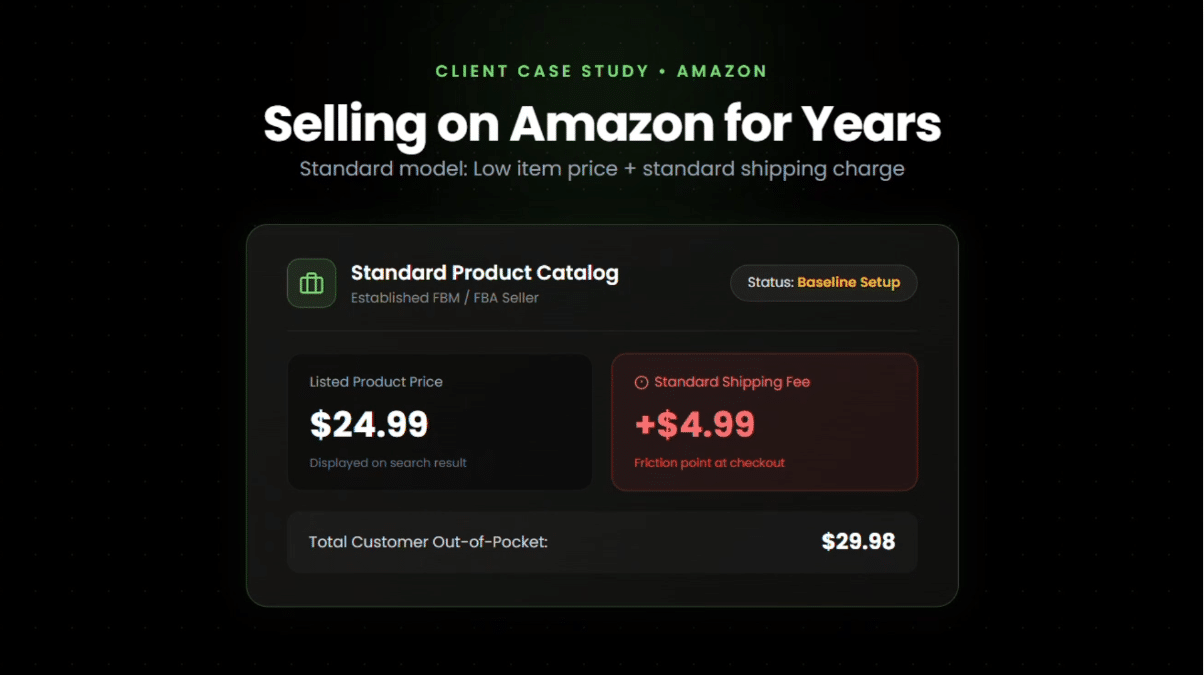
Image above: An established Amazon seller charged $24.99 for the product plus $4.99 for shipping, for a total customer price of $29.98.
How to Set Up Free Shipping on Amazon FBM
If you're currently charging for standard shipping, you can make this change directly in Amazon Seller Central.
The process involves two main things:
- Creating or modifying a shipping template so that standard shipping costs $0.
- Updating the product price and assigning the correct shipping template to the listing.
I generally recommend creating a new shipping template instead of immediately changing your existing one, especially if you're already actively selling products.
That allows you to test the change on a few products without affecting your entire catalog.
Here's a quick overview of the process. I'll explain each step in more detail below.
| Step | Where to Go | What to Do |
|---|---|---|
| 1 | Settings → Shipping Settings | Open your shipping settings. |
| 2 | Shipping Templates | Duplicate your template if actively selling. |
| 3 | Domestic Shipping | Set standard per-shipment shipping to $0. |
| 4 | Standard Shipping Rates | Set per-item or per-pound charges to $0. |
| 5 | Shipping Template | Save the new template. |
| 6 | Manage All Inventory | Edit the product and increase its price. |
| 7 | Offer Tab | Assign your free shipping template. |
| 8 | Manage All Inventory | Wait around 15–30 minutes and verify the change. |
| 9 | Amazon Product Page | Confirm the price and free standard shipping. |
| 10 | Fix Price Alerts | Check for pricing errors. |
Step 1: Go to Shipping Settings in Amazon Seller Central
Log in to your Amazon Seller Central account.
In the upper-right corner, click the settings gear icon.
From there, select Shipping Settings.
This takes you to the area where Amazon lets you manage shipping templates for your merchant-fulfilled products.
Shipping templates determine how much customers are charged for shipping and which shipping options are available.
For example, you might have a shipping template that charges $4.99 for standard shipping, or one that charges a fixed amount per order plus an additional amount based on the weight of the product.
The shipping template assigned to a particular SKU controls the shipping charges associated with that offer.
For additional details on Amazon's shipping settings, you can read our complete guide to Amazon FBM shipping settings.
Step 2: Find Your Existing Shipping Template
Once you're in Shipping Settings, look for the shipping templates associated with your account.
By default, Amazon commonly has a template called Migrated Template.
If you've never created your own shipping templates, there's a good chance this is the one your FBM listings are currently using.
You might also have additional templates if you've previously customized your shipping settings.
Open the template you're currently using and review the standard shipping charges.
Depending on how your account is configured, you'll generally see shipping rates based on a fixed per-shipment charge and an additional per-item or weight-based amount.
These are the amounts we're going to change.
But before making those changes, you'll need to decide whether to edit the existing template or create a new one.
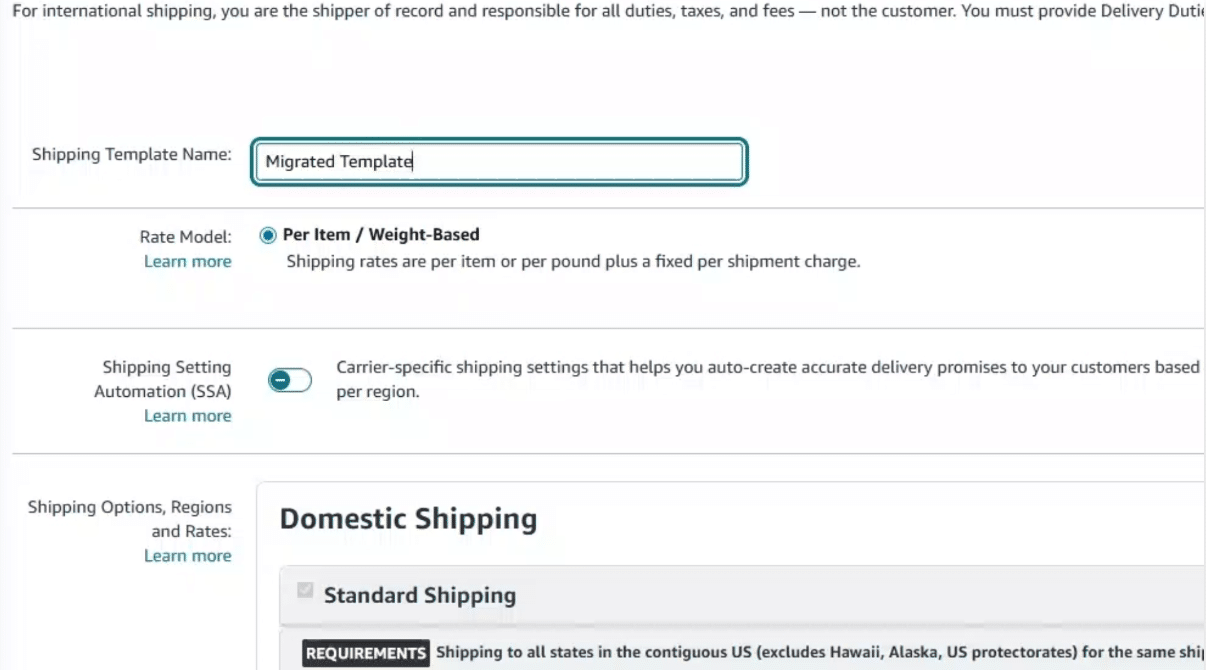
Image above: Amazon's shipping template editor, where you can configure standard shipping rates for your FBM products.
Step 3: Duplicate the Shipping Template (Recommended for Existing Sellers)
If you're already selling products on Amazon, I'd recommend duplicating your existing shipping template.
The reason is simple: you probably don't want to change the shipping charges across your entire catalog before you've updated the product prices.
If you edit your existing template and change standard shipping to $0, that change can affect every product assigned to that template.
If those products still have their old prices, customers could temporarily be purchasing them without paying the shipping amount you've been charging.
Instead, duplicate the existing template and give the new one a recognizable name.
For example, you could call it Free Standard Shipping.
That makes it easy to identify which products are using the new shipping settings.
It also allows you to move products over individually as you update their prices.
You can start with a small group of products, evaluate the results, and then make the change across the rest of your catalog.
What If You Haven't Started Selling Yet?
If you're setting up a new Amazon account or haven't really started selling products, you don't necessarily need to duplicate the template.
You can simply edit your existing Migrated Template and change the standard shipping charges.
Because you don't have an established catalog of products actively selling at their existing prices, there isn't the same concern about accidentally changing shipping charges on a large number of listings.
For established sellers, though, I prefer creating a separate template.
Step 4: Change the Standard Shipping Charges to $0
Now open the shipping template you want to use for free shipping.
Find the section labeled Domestic Shipping, and then locate Standard Shipping.
This is where Amazon lets you configure the amount customers pay for standard delivery.
If your template uses the per-item or weight-based rate model, you'll typically see settings for a shipping charge per order and another charge per item or per pound.
You need to set both of these amounts to zero.
For example, let's say your existing shipping template has these charges:
- Per-shipment charge: $4.99
- Per-pound charge: $0.00
In that situation, you would change the $4.99 per-shipment charge to $0.00.
Or let's say your shipping template charges $3.99 per shipment plus $0.50 per pound.
You would need to change both values:
- Per-shipment charge: $0.00
- Per-pound charge: $0.00
Make sure you zero out every standard shipping charge that applies.
If you change the per-shipment charge but leave a per-pound charge in place, customers may still be charged for standard shipping.
Once you've updated the standard shipping rates, scroll down and save the shipping template.
You now have a shipping template configured to offer free standard shipping.
However, you're not quite finished.
You still need to increase the product price and assign the template to the appropriate listings.
Amazon also has official instructions for creating and editing shipping templates if you need additional help finding these settings.
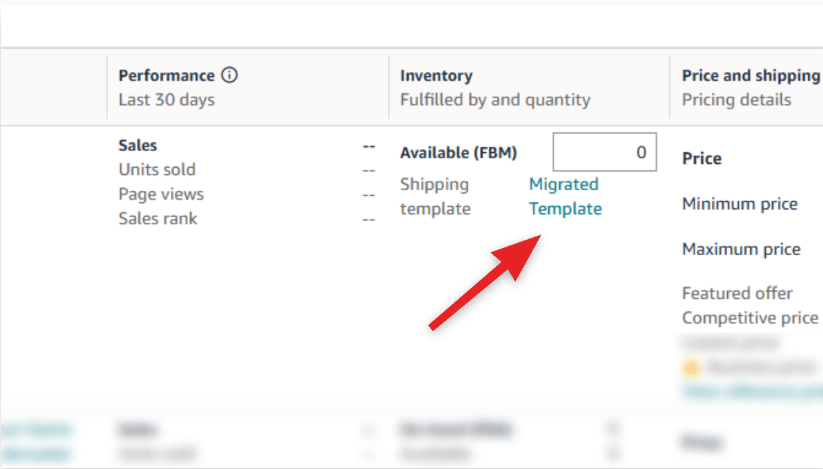
Image above: The shipping template assigned to an FBM offer is displayed in Manage All Inventory. After making your changes, verify that your new template appears here.
Step 5: Go to Manage All Inventory and Edit the Product
Next, go to Manage All Inventory in Seller Central.
Find the product you want to switch to free shipping.
Select the option to edit that product.
You'll need to make two changes:
- Increase the product price to account for the shipping amount you were previously charging.
- Assign the new free shipping template to the product.
Let's use the earlier example.
Suppose you're selling a product for $24.99 and charging $4.99 for shipping.
You would increase the product price to $29.98.
Previously:
$24.99 product price + $4.99 shipping = $29.98 total.
After the change:
$29.98 product price + $0.00 shipping = $29.98 total.
The customer pays exactly the same amount.
You're simply moving the shipping charge into the price of the product.
This is important because the idea isn't to make shipping free by absorbing the shipping cost yourself.
You're still going to have to pay to ship the product.
The objective is to change how the customer sees the price, without unnecessarily reducing the amount you're collecting from the order.
Step 6: Change the Shipping Template on the Offer Tab
After updating the product price, find the Offer tab in the listing editor.
Look for the field that controls the shipping template.
It will usually display the name of the template currently assigned to that product.
For example, it might say Migrated Template.
Open the dropdown and select the new shipping template you created.
If you named it Free Standard Shipping, you should see that name in the available options.
Select it and save your changes.
This step is important.
Simply creating a shipping template with free shipping doesn't automatically mean all your products will use it.
Each FBM offer needs to be assigned to the appropriate template.
If you increase the price but forget to change the template, the customer could end up paying the higher product price plus the original shipping charge.
Using the earlier example, that would mean the customer could see a $29.98 product price plus another $4.99 for shipping.
That's obviously not what we're trying to accomplish.
Make sure the shipping template and price changes are made together.
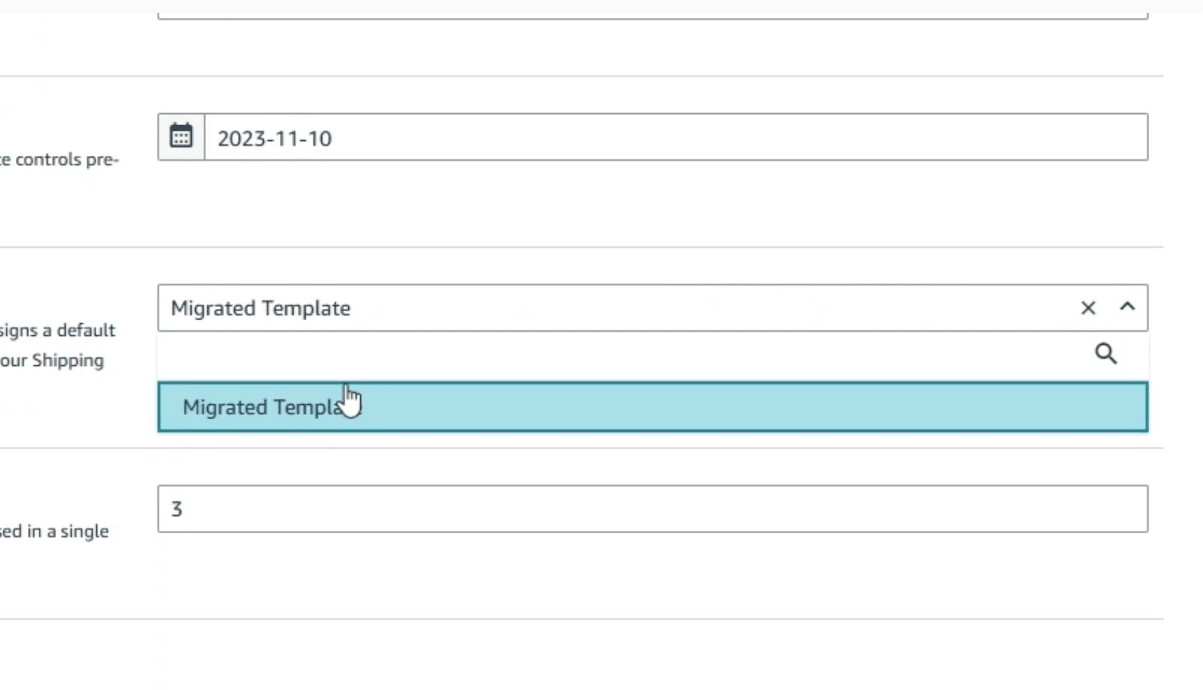
Image above: Select your new free shipping template from the dropdown on the product's Offer tab, then save the listing.
Step 7: Wait for Amazon to Update the Listing
After saving the changes, they may not appear immediately.
In our experience, it typically takes around 15–30 minutes for the updated shipping template and product price to show correctly.
Once you've allowed some time for the changes to process, go back to Manage All Inventory.
Find the product you updated.
Look at the shipping template information and confirm that the new template name is showing.
For example, if you selected Free Standard Shipping, that's what you should see associated with the product.
If it still shows Migrated Template, the change may not have processed yet, or you may need to go back into the listing and verify that the new template was saved.
Don't assume the change worked just because you clicked Save.
It's always worth checking.
Step 8: View the Product Listing as a Customer
After verifying the shipping template in Seller Central, I recommend checking the actual product detail page on Amazon.
This is one of the most important parts of the process.
You want to make sure the customer is seeing what you intended.
Open the listing on Amazon, preferably in an incognito or private browsing window.
Set the delivery location to a ZIP code in the continental United States.
Then check two things.
First, confirm that the product price has increased by the correct amount.
If the product was previously $24.99 with $4.99 shipping, you should now see the updated $29.98 price.
Second, confirm that standard shipping is showing as free.
There shouldn't be an additional standard shipping charge that gets added to the price.
Be careful about checking the listing while Amazon is using a delivery address outside the continental United States.
Different regions can have different shipping settings, so you want to test the normal domestic shipping experience.
This step helps you catch situations where the wrong shipping template was assigned or the changes haven't been applied correctly.
Step 9: Check for Pricing Alerts
One additional thing worth checking is whether the product price increase triggered any pricing alerts in Seller Central.
Amazon has systems that can flag prices it considers potentially incorrect.
Because you're increasing the listed product price, it's worth checking Fix Price Alerts after making the change.
Even though the total amount the customer pays hasn't increased, you still want to make sure Amazon hasn't flagged the offer or created a pricing-related problem.
If you see an alert, review the pricing information before assuming everything is working properly.
This is especially worthwhile if you're changing prices on a large number of products.
Step 10: Repeat the Process for Other Products
Once you've verified that the first product is displaying correctly, you can start changing additional products.
If you're actively selling, I recommend testing a few products first rather than immediately switching everything over.
Ideally, choose products where you can compare performance against similar products that continue using the original shipping settings.
That's how we approached the client test I mentioned earlier.
It gives you a better idea of how the change is affecting sales.
Once you're comfortable with the setup, you can repeat the process for the rest of your FBM catalog.
If you have a large number of SKUs, you don't necessarily need to edit each product individually.
Amazon also provides inventory files that can be used to make certain offer updates in bulk, including shipping template assignments.
For larger catalogs, that can be much more efficient than opening hundreds of listings one at a time.
Just make sure the product prices and shipping template assignments are coordinated properly.
You don't want to accidentally apply free shipping across a large catalog without accounting for the shipping costs in your prices.
What If You're Currently Charging Shipping Based on Product Weight?
Some sellers don't charge a flat shipping fee.
Instead, their shipping template charges a different amount depending on the weight of the product.
For example, you might have a shipping template that charges a fixed fee plus an additional amount per pound.
In that situation, you can still switch to free standard shipping.
The main difference is that you may need to increase the price of different products by different amounts.
Let's say you have two products.
The first product is relatively lightweight and currently has a $4.00 shipping charge.
The second product is heavier and currently has an $8.00 shipping charge.
If you want both products to offer free standard shipping, you probably wouldn't increase both product prices by the same amount.
Instead, you might increase the lightweight product by $4.00 and the heavier product by $8.00.
That way, the total amount customers pay for each product stays approximately the same as before.
| Comparison | Lightweight Product | Heavy Product |
|---|---|---|
| Original product price | $20.00 | $40.00 |
| Original shipping charge | $4.00 | $8.00 |
| Original total | $24.00 | $48.00 |
| Price increase | +$4.00 | +$8.00 |
| New product price | $24.00 | $48.00 |
| New shipping charge | $0.00 | $0.00 |
| New customer total | $24.00 | $48.00 |
These are illustrative prices. Actual shipping costs and charges vary by product and fulfillment arrangement.
The important thing is to figure out what shipping was costing the customer for each product and then adjust your prices accordingly.
You don't have to use the same price increase across your entire catalog.
In fact, if your products vary substantially in size or weight, it probably wouldn't make sense to do that.
Your goal is to account for the shipping charges you've removed, without unnecessarily increasing or decreasing the total price.
Also remember that your actual cost to ship an order may differ from the amount you've been charging customers.
You should still understand your shipping costs and product margins before making a broad pricing change.
Will Raising Your Product Price Cause You to Lose the Amazon Buy Box?
This is one of the most common concerns brands have when we recommend making this change.
Amazon pays attention to how products are priced compared to other websites and marketplaces.
If your product is available elsewhere at a lower price, that can affect your eligibility for the Featured Offer, which many sellers still refer to as the Buy Box.
The Featured Offer is the offer that customers can typically purchase using the main Add to Cart or Buy Now buttons on a product detail page.
Losing Featured Offer eligibility can substantially affect sales. We've explained this in more detail in our article on what to do when your Amazon listing isn't winning the Buy Box.
So it's understandable that a brand might be hesitant to increase its product prices on Amazon.
But here's the important distinction.
Amazon's competitive pricing considerations include the product price and shipping, not simply the product price by itself.
Let's use the same example again.
Before the change:
- Product price: $24.99
- Shipping: $4.99
- Total: $29.98
After the change:
- Product price: $29.98
- Shipping: Free
- Total: $29.98
Although the displayed product price increased by $4.99, the total amount customers pay hasn't changed.
You're not making the product more expensive to purchase.
You're simply presenting the same total price differently.
Because of that, this change by itself generally shouldn't create the same competitive pricing concern as increasing the total amount a customer has to pay.
That doesn't mean changing your shipping template guarantees Featured Offer eligibility. Amazon considers multiple factors, and its pricing systems can still flag individual offers.
But you don't need to avoid this strategy simply because you're worried that the displayed product price is increasing.
Compare Your Amazon Price With Your Own Website
There's one additional thing I'd recommend checking.
Look at what customers are actually paying when they purchase the same product through your own website or another marketplace.
For example, suppose your product is $29.98 with free shipping on Amazon, but your website sells that same product for $24.99 with free shipping.
Now your Amazon offer is effectively $4.99 more expensive.
That could create a pricing competitiveness issue.
On the other hand, if your website sells the product for $24.99 plus $4.99 shipping, the total is still $29.98.
The point is to compare the actual total amount customers pay, including applicable shipping charges.
Don't just compare the product prices without considering shipping.
And after making changes on Amazon, it's still a good idea to monitor your Featured Offer eligibility and any pricing alerts.
Amazon Standard Shipping Rules for the Continental United States
Another thing FBM sellers need to understand is how Amazon handles standard shipping rates across different regions.
For standard domestic shipping, Amazon's shipping template requirements generally call for consistent shipping rates across the 48 contiguous United States.
That means you can't simply set up a standard shipping template that charges one amount to customers in California and a completely different amount to customers in New York.
For example, you might have a warehouse in Utah.
Shipping a product to a nearby customer in Colorado might cost you substantially less than shipping that same product to someone in Florida.
But that doesn't mean you can necessarily create a different standard shipping charge for each state within the contiguous United States.
That's one more reason why I generally recommend building standard shipping into the product price.
You're already working within Amazon's domestic standard shipping requirements, so you might as well present the product with free shipping.
What About Alaska, Hawaii, and Expedited Shipping?
Free standard shipping across the contiguous United States doesn't necessarily mean you need to offer free shipping everywhere.
You can still configure separate shipping options and charges for regions such as Alaska and Hawaii, where shipping costs can be substantially different.
You can also charge additional amounts for expedited shipping services.
For example, you might offer:
- Free standard shipping to the 48 contiguous United States.
- A separate shipping charge for Alaska and Hawaii.
- Paid expedited shipping for customers who want faster delivery.
The recommendation here is specifically about standard shipping for your normal domestic FBM orders.
You don't necessarily need to eliminate every possible shipping charge.
Just make sure the settings in your shipping template reflect how you actually fulfill orders and the shipping options you intend to provide.
Do You Need to Change Shipping Templates If You're Using FBA?
No.
Everything I've explained about shipping templates applies to Fulfilled by Merchant (FBM) offers.
FBM means that you, your warehouse, or a third-party logistics provider are responsible for shipping orders directly to customers.
With FBM, you configure the shipping options and rates in Seller Central.
Fulfillment by Amazon (FBA) works differently.
With FBA, you send your inventory to Amazon, and Amazon handles fulfillment when customers place orders.
FBA listings generally provide customers with access to Amazon's free shipping options, including Prime shipping for eligible customers.
You don't need to go into Shipping Settings and create a free shipping template for FBA inventory.
Those FBM shipping templates aren't what controls shipping charges for FBA offers.
If your products are already using FBA, there's no reason to follow the shipping template process explained above.
However, if you're currently using FBM and are considering switching to FBA, that's another option worth evaluating.
Using FBA can offer additional benefits beyond free shipping, including Prime eligibility, but there are also fulfillment and storage fees to consider.
For a more detailed comparison, see our article on the differences between Amazon FBA and FBM.
For this particular change, you don't need to switch fulfillment methods.
You can continue fulfilling your own orders and simply offer free standard shipping using FBM.
Common Mistakes to Avoid When Setting Up Free Shipping
The actual process is fairly straightforward, but there are a few things that can go wrong.
Most of these are easy to avoid if you double-check your changes.
| Mistake | What Can Happen | How to Avoid It |
|---|---|---|
| Editing the original template | All assigned products may switch to free shipping. | Duplicate the template first. |
| Forgetting to increase prices | You lose the amount previously collected for shipping. | Adjust prices before switching templates. |
| Forgetting to assign the new template | Customers may pay the higher price plus shipping. | Update the Offer tab. |
| Leaving weight-based charges active | Customers may still see shipping fees. | Set all applicable standard shipping charges to $0. |
| Using the same increase for every SKU | Some products may be incorrectly priced. | Adjust based on each product's original shipping charge. |
| Not checking the live listing | Price or shipping errors go unnoticed. | Verify using a US ZIP code. |
| Ignoring pricing alerts | Pricing and Featured Offer issues may go unnoticed. | Check Fix Price Alerts. |
1. Changing the Original Template Before Updating Product Prices
If you have an established catalog, be careful about editing a shipping template that's currently assigned to a large number of products.
Changing the original template to free shipping could affect all those products.
If their prices haven't been adjusted, you could unintentionally remove shipping revenue from those orders.
This is why I recommend duplicating the template and testing it with a few products first.
2. Increasing the Price but Forgetting to Assign the New Template
This is an easy mistake.
You increase the price by $5.00 but leave the old shipping template assigned.
Now customers are potentially being charged an additional $5.00 for shipping on top of the higher product price.
Always check both settings.
The product price and shipping template need to work together.
3. Forgetting to Zero Out the Per-Pound Charge
If your shipping template uses weight-based rates, changing the fixed shipping charge to $0 isn't necessarily enough.
Make sure the per-item or per-pound charge is also set to $0 for standard shipping.
Otherwise, the shipping charge may still be applied.
4. Assuming Every Product Needs the Same Price Increase
If you've been charging a variable shipping amount, you may need to calculate different price adjustments for different products.
A small, lightweight item probably doesn't have the same shipping economics as a large, heavy item.
Don't automatically increase every SKU by the same amount without looking at your existing shipping charges.
5. Not Checking the Customer-Facing Listing
Seller Central might show that you've saved the changes, but you still want to verify the actual offer.
Check from a US ZIP code and confirm that the product price has updated and that standard shipping is free.
This is particularly important if you're changing multiple products.
6. Ignoring Pricing Alerts
Because you're increasing the displayed product prices, check Seller Central for pricing errors or Featured Offer issues.
Even though your intended total customer price hasn't changed, you should still confirm that Amazon has accepted your updates without creating other problems.
7. Changing Every Product Without Testing
If you're an established brand with a large catalog, there's no need to rush through every SKU at once.
Start with a smaller group of products.
Make sure the settings work properly, monitor sales, and then expand the change if the results make sense.
That's generally a better approach than making a large catalog-wide change without checking the outcome.
Should Every Amazon FBM Seller Offer Free Standard Shipping?
For most brands selling through FBM, my recommendation is yes.
If you're currently charging separately for standard shipping, I'd strongly consider changing that.
The important thing is that we're not suggesting that you simply absorb the cost of shipping and make less money on every order.
We're recommending that you account for shipping in the product price instead of presenting it as an additional charge.
For example, if you're charging $5.00 for shipping, raise the product price by $5.00 and offer free standard shipping.
You still collect the same total amount from the customer.
But based on our experience, that offer is likely to perform better.
There's also no reason you need to change every product immediately.
If you're not sure how this will affect your particular catalog, test a group of products and compare the results.
That's what we've done with clients, and it's how we've been able to see the effect that this simple change can have.
Just make sure you're evaluating comparable products over a reasonable period and accounting for other changes that might affect sales.
Frequently Asked Questions About Amazon FBM Free Shipping
How do I offer free shipping on Amazon Seller Central?
Go to Settings, then Shipping Settings. Create a new shipping template or edit an existing one, and set the standard shipping charges to $0. Make sure both the per-shipment charge and any per-item or per-pound charges are zero.
Then go to Manage All Inventory, edit your product, increase the price to account for the shipping amount you previously charged, and select the free shipping template on the Offer tab.
Save the changes and verify that the listing displays correctly.
Can I offer free shipping on Amazon without using FBA?
Yes.
You can offer free standard shipping with Fulfilled by Merchant (FBM).
You don't need to send products to Amazon's warehouses or use FBA.
Simply configure your FBM shipping template to charge $0 for standard shipping and adjust your product prices accordingly.
You remain responsible for shipping the orders.
Does offering free shipping on Amazon mean I have to pay the shipping cost myself?
You still have to pay the cost of shipping the order, but you don't necessarily have to absorb that cost out of your existing profit margin.
You can build the shipping amount into the product price.
For example, instead of charging $25 for a product plus $5 shipping, you can charge $30 with free shipping.
The customer pays $30 either way.
Your actual profitability will still depend on your fulfillment costs and applicable Amazon fees.
How long does it take for a new shipping template to update?
In our experience, changes commonly take approximately 15–30 minutes to appear.
After making the changes, check Manage All Inventory to confirm the correct shipping template is assigned.
Then open the customer-facing listing and make sure the updated price and free shipping are displaying correctly.
Can I charge for expedited shipping while offering free standard shipping?
Yes.
You can offer free standard shipping while maintaining separate charges for faster shipping options.
For example, a customer might have the option to choose free standard delivery or pay more for expedited delivery.
These options are controlled through your shipping settings.
Can I charge shipping for Alaska and Hawaii?
Yes. You can configure separate shipping charges for Alaska and Hawaii rather than offering the same free standard shipping rate used for the contiguous United States.
Review the appropriate regions and shipping options in your template.
Will increasing my product price to include shipping cause me to lose the Buy Box?
Not necessarily.
Amazon's competitive pricing considerations include shipping charges as part of the total customer price.
If you increase the product price by the same amount you're removing from shipping, the customer's total price remains unchanged.
That said, Featured Offer eligibility depends on multiple factors. Check your pricing alerts, competing offers, and prices on other websites to make sure there aren't additional issues.
Can I change the shipping template for multiple products at once?
Yes.
For larger catalogs, Amazon inventory files can be used to update shipping template assignments in bulk.
This can be more efficient than editing each listing individually.
Make sure the product prices are also adjusted correctly, and verify the changes after processing.
Should I edit Migrated Template or create a new shipping template?
If you aren't actively selling many products yet, you can usually just edit your existing Migrated Template.
If you already have products selling on Amazon, I'd recommend duplicating the template and creating a separate version for free shipping.
That allows you to update products individually and test the change without affecting your entire catalog.
Final Recommendation: Stop Charging Separately for Standard Shipping
If you're selling products on Amazon through FBM and currently charge for standard shipping, this is one of the first things I'd recommend changing.
We've seen established brands increase their sales simply by moving the shipping charge into the product price.
In one client test, the products switched to free shipping sold approximately 20–30% more than similar products that continued charging shipping separately.
Customers were paying the same total amount.
And the change itself is relatively easy to make.
Just remember the main steps: create a free shipping template, set the standard shipping charges to zero, adjust your product prices, assign the correct template, and verify that everything displays properly.
Free shipping is also only one of several important FBM shipping settings that can affect your sales.
Other shipping settings and decisions are worth reviewing to make sure you're not unnecessarily limiting your products' performance.
If you want to see the actual process in Seller Central, the video above walks through the changes step by step. You can also review our guide to other important FBM shipping settings.
If your situation is more complex, particularly if you have a large catalog or need help configuring your shipping settings correctly, you can contact our team at customerservice@fivestarcommerce.com.