
If your brand is going to sell products on Amazon and ship orders from your own warehouse instead of using Amazon FBA, there are several shipping settings you need to get right before your products go live.
A small mistake with these settings can cause serious problems. You could end up promising customers delivery dates that your warehouse can't realistically meet, shipping orders later than Amazon expects, or having late carrier deliveries negatively affect your account health.
These problems can be difficult to recover from. In some cases, poor shipping performance can affect your ability to win the Buy Box (Featured Offer), reduce sales, or even put your ability to fulfill orders yourself at risk.
What many brands don't realize is that Amazon shipping settings aren't just operational settings. They're also strategic decisions that can directly affect your sales.
The cutoff time you choose, whether you offer free shipping, how quickly you promise delivery, and which shipping services you use can all influence whether a customer purchases your product.
I'm going to walk through the important Amazon FBM shipping settings, explain what each one does, and show you how I generally recommend setting them up for an established product brand.
We'll also cover Shipping Settings Automation (SSA), Amazon Buy Shipping, and how to help protect your account when a shipping carrier delivers an order late.
What Is Amazon FBM, and How Is It Different From FBA?
Before getting into the settings, there are a few terms you need to understand.
Amazon has two main fulfillment methods: FBA and FBM.
FBA (Fulfilled by Amazon) means you send inventory in bulk to Amazon's fulfillment centers. When a customer places an order, Amazon picks, packs, and ships the product to the customer.
FBM (Fulfilled by Merchant) means you list your products on Amazon, but you keep inventory at your own warehouse or a third-party fulfillment location.
When a customer places an order, Amazon sends you the order information. Your business then ships the product directly to the customer and provides Amazon with the tracking number.
For example, let's say you have a dietary supplement brand with a warehouse in Ohio.
If you're using FBA, you send cases of supplements to Amazon's warehouses ahead of time. Amazon handles the individual customer shipments.
If you're using FBM, the customer purchases the supplement on Amazon, but the order goes to your warehouse in Ohio. Your fulfillment team packages the order, purchases the shipping label, and ships it to the customer.
Here's a comparison of the two fulfillment methods:
| Feature | FBM (Fulfilled by Merchant) | FBA (Fulfilled by Amazon) |
|---|---|---|
| Inventory storage | Your warehouse or 3PL | Amazon fulfillment centers |
| Order fulfillment | Your business ships orders | Amazon ships orders |
| Shipping labels | Your business purchases labels | Amazon handles customer shipment labels |
| Customer delivery | Based on your shipping settings and carrier | Based on Amazon's fulfillment network |
| Prime eligibility | Available through Seller Fulfilled Prime if qualified | Generally available for eligible FBA offers |
| Shipping performance | Your responsibility | Amazon handles fulfillment |
| Best suited for | Brands with suitable fulfillment operations, oversized products, or specialty inventory | Brands seeking Amazon-managed fulfillment and fast Prime delivery |
Neither option is automatically the right choice for every brand. But if you're going to use FBM, you're responsible for making sure your shipping operations meet the delivery promises Amazon shows customers.
For a more detailed explanation of Amazon-managed fulfillment, see our article on how Fulfillment by Amazon works.
Understanding Handling Time vs. Transit Time
Two important terms you'll see throughout Amazon's shipping settings are handling time and transit time.
Handling time is the amount of time between when a customer places an order and when you ship the order and provide Amazon with the tracking information.
Transit time is the amount of time between when the product is shipped and when it gets delivered to the customer.
These two time periods work together to determine the delivery date Amazon promises customers.
For example, suppose your settings have:
- Handling time: 1 business day
- Transit time: 3–5 business days
You have one business day to ship the order, and the delivery promise allows up to five additional business days in transit.
That means the total delivery estimate can extend to six business days after the order is placed, depending on the order date, cutoff time, and operating calendar.
| Stage | What It Means | Example |
|---|---|---|
| Order placed | Customer completes their Amazon purchase | Monday |
| Handling time | Time allowed for your warehouse to ship and confirm the order | 1 business day |
| Product shipped | Carrier receives the shipment and Amazon receives tracking information | Tuesday |
| Transit time | Time allowed for the carrier to deliver the product | 3–5 business days |
| Final delivery | Customer receives the order | Within the calculated delivery promise |
Here's an important distinction.
Let's say you have a one-day handling time, but your warehouse doesn't ship the order until two days after the customer places it.
You then pay for overnight shipping, and the product arrives at the customer's house earlier than the original estimated delivery date.
Even though the customer received the product quickly, you can still have a late shipment because you didn't ship it within your handling time.
Getting the product delivered on time doesn't automatically mean you met your shipping deadline.
That's why it's important to set up both handling time and transit time correctly.
Step 1: Find Your Shipping Settings in Amazon Seller Central
The first thing to do is open your shipping settings in Seller Central.
- Log in to Amazon Seller Central.
- Click the Settings gear icon.
- Select Shipping Settings.
- This will open the area where you manage your shipping templates, warehouse locations, and other shipping preferences.
Depending on when your seller account was created, you may see a default shipping template called Migrated Template.
A shipping template is basically a shipping policy.
It tells Amazon which shipping methods you offer, what areas you ship to, how quickly customers should receive their orders, and how much you charge for shipping.
You can have one shipping template for all your products, or multiple templates for different types of products.
We'll go through shipping templates in more detail later, but first you need to make sure your warehouse locations are configured.
Step 2: Add Your Warehouse or Ship-From Location
Amazon needs to know where your products are being shipped from.
This is especially important when using Shipping Settings Automation because Amazon uses your warehouse location to calculate estimated delivery dates.
From Shipping Settings, find the section where you can manage your locations.
If you haven't already added your warehouse, create a new location.
Enter Your Warehouse Information
When creating a location, Amazon will ask for information such as:
- Location name
- Warehouse address
- Phone number
- Email address
- Warehouse contact information
- Whether the location ships customer orders
For the location name, I would generally use something straightforward, like the name of your warehouse or fulfillment center.
If your business has one warehouse, this process is relatively simple.
If you have multiple warehouses across the country, you can configure multiple ship-from locations. That gets a little more complicated because Amazon needs to account for which locations can fulfill orders and which shipping services are available from each location.
For this walkthrough, we'll focus primarily on a business shipping from one warehouse.
Most brands using FBM will not need to enable in-store pickup.
Once you've entered the information, click Create Location.
After creating the location, you can select Edit to configure the shipping capabilities for that warehouse.
Step 3: Configure Your Warehouse Shipping Capabilities
Inside your warehouse settings, you'll find options related to shipping capabilities.
These settings can include manual transit times and Shipping Settings Automation.
The main difference between the two is who calculates the estimated transit time.
Manual Transit Times
With manual transit times, you tell Amazon how long shipping should take.
For example, you might indicate that orders shipping through a particular service will arrive within three to five business days.
Amazon uses the transit time you've configured, along with handling time and the applicable calendar, to determine what delivery estimate to display.
The challenge is that delivery time can vary significantly depending on where your customer lives.
Suppose your warehouse is in Ohio.
A customer in a neighboring state may receive an order much faster than a customer in Florida or California, even if you use the same carrier service.
A manually configured transit time has to account for those differences.
If you set the time too aggressively, you risk promising delivery dates that your carrier can't consistently meet.
If you set it too conservatively, customers might see unnecessarily long delivery estimates.
Both situations can cause problems.
Shipping Settings Automation (SSA)
Shipping Settings Automation works differently.
Instead of manually assigning all the transit times, you tell Amazon which shipping services you use and where you ship orders from.
Amazon then estimates transit times using information about those carriers and their delivery performance.
Let's go back to the warehouse in Ohio.
If a customer in Florida purchases your product, Amazon can calculate an estimated delivery date based on the warehouse location, shipping service, pickup schedule, and other delivery information.
If another customer in a different part of the country purchases the same product, Amazon can calculate a different transit time.
This can make delivery estimates more accurate instead of using one broad estimate for every customer.
| Feature | Manual Transit Times | Shipping Settings Automation |
|---|---|---|
| Transit-time estimates | Seller configures them | Amazon calculates them |
| Warehouse location | Seller manages configuration | Used in automated calculations |
| Shipping services | Seller sets applicable delivery times | Seller selects applicable carrier services |
| Delivery accuracy | Depends on manual estimates | Uses carrier and delivery-performance data |
| Day-specific cutoff flexibility | More limited | Supports additional customization where available |
| OTDR protection | Does not independently meet the SSA requirement | Can help qualify when all other requirements are met |
| My recommendation | Understand the settings, but avoid unnecessary manual management | Generally preferred for eligible FBM shipping |
There are also potential account health protections available when orders meet Amazon's requirements.
My general recommendation is to use Shipping Settings Automation rather than relying entirely on manual transit time settings.
It's a useful feature, and Amazon has been moving sellers toward greater automation of shipping estimates.
One important qualification: The timing and applicability of Amazon's automation requirements can change. Check the current Shipping Settings page in your account to see which options Amazon requires for your shipping methods.

Image above: The FBM fulfillment process includes handling time and carrier transit time. Both affect the delivery promise shown to customers.
Step 4: Set Your Order Cutoff Times
This is one of the settings that has more strategy behind it than most brands realize.
Your order cutoff time determines when an order needs to be placed to qualify for a particular handling schedule.
For example, suppose your warehouse has a 2:00 p.m. cutoff time.
A customer who purchases your product before that cutoff may qualify for an earlier shipping schedule than someone who places their order afterward.
The exact calculation depends on your handling time and shipping configuration.
Should You Choose an Earlier or Later Cutoff Time?
From a sales standpoint, a later cutoff time can be beneficial.
Why? Because it allows more customers to place orders and receive an earlier estimated delivery date.
Let's say one brand has a 12:00 p.m. cutoff and another has a 4:00 p.m. cutoff.
A customer shopping at 3:00 p.m. may see a faster delivery promise from the business with the later cutoff, assuming its warehouse can actually meet that schedule.
That faster delivery estimate may make the product more attractive.
The tradeoff is that your warehouse needs enough time to process the orders.
You don't want to set a 4:00 p.m. cutoff if your fulfillment team stops processing orders at 3:30 p.m.
The goal is to set your cutoff time as late as reasonably possible without regularly missing your shipping deadlines.
Different Cutoff Times for Different Shipping Services
Depending on your shipping configuration, you may be able to set different cutoff times for services such as:
- Standard shipping
- One-day shipping
- Same-day shipping
Your cutoff time should reflect what your warehouse is actually capable of doing.
For example, if your warehouse can reliably fulfill standard orders later in the afternoon but needs more preparation time for a premium service, you may want different cutoff schedules.
Don't choose a later cutoff simply because it looks better to customers. It has to be achievable.
Step 5: Configure Carrier Pickup Times and Operating Days
When you're using Shipping Settings Automation, Amazon can also ask for the last pickup time for the carriers servicing your warehouse.
For example, you might use:
- UPS
- FedEx
- USPS
The last pickup time is the latest time that a particular carrier comes to your warehouse to collect packages.
Suppose UPS makes its final pickup at 5:00 p.m.
Your order processing cutoff needs to make sense relative to that pickup time. Amazon can use these settings when calculating how quickly an order can enter the carrier network.
This assumes that you're using regular carrier pickups.
Saturday and Sunday Shipping
You also need to configure which days your warehouse operates.
For many brands, the warehouse ships Monday through Friday and doesn't process orders on Sunday.
Some businesses also fulfill orders on Saturdays.
Make sure the settings reflect your actual operating schedule.
If you tell Amazon that your warehouse ships on Saturday but nobody is there to process orders, you could end up missing shipping deadlines.
On the other hand, if you do regularly ship on Saturdays, configuring that correctly may allow Amazon to show customers faster delivery estimates.
Custom Cutoff Times for Certain Days
One nice feature of Shipping Settings Automation is that you can configure different cutoff times for certain days, where the settings support it.
For example, some of our clients sell perishable products.
They might normally ship throughout the afternoon during the week, but they don't want certain orders leaving the warehouse late on Friday.
The concern is that the products could sit somewhere in the carrier network over the weekend.
In that situation, setting an earlier Friday cutoff can make sense.
You might have one cutoff schedule for Monday through Thursday and a different one for Friday.
This is an example of why shipping settings need to reflect the type of products you sell, not just how quickly your warehouse can package an order.
After configuring the applicable times and operating days, save your changes.
Step 6: Configure General Shipping Settings
Next, go back to Shipping Settings and open General Shipping Settings.
This area includes several settings that are easy to overlook but can have major consequences if they're configured incorrectly.
Default Shipping Address
Your default shipping address should generally be the location where your business ships orders.
For a company operating from one warehouse, this is usually straightforward.
If you're fulfilling orders from multiple locations, you'll need to be more careful about how your addresses and shipping templates are configured.
Default Handling Time
Amazon allows you to configure a default handling time for your products.
In the interface demonstrated in the video, the default options were zero days or one day.
You may also be able to configure longer handling times for individual SKUs.
For example, let's say most of your products are ready to ship immediately, but one product requires additional preparation.
You might use a one-day default handling time for most products and configure a longer handling time for that particular SKU.
To do that, go to the product's listing settings, open the Offer section, and configure its handling time.
A SKU-specific handling time can override the account-level default.
This is useful because you don't necessarily need to make all your products slower just because a few require additional handling.
Automated Handling Time
You may also see an option for Automated Handling Time.
This allows Amazon to use fulfillment performance information to calculate handling times instead of relying entirely on seller-entered values.
Whether this is appropriate depends on how consistently your warehouse processes orders and which options are currently available in your account.
It's also worth understanding that Automated Handling Time and Shipping Settings Automation are different settings.
One relates to how long your business takes to ship an order. The other primarily relates to estimating carrier transit time.
Both can be relevant when you're trying to qualify for Amazon's delivery-performance protections.
Daily Order Handling Capacity
Amazon also has a setting for daily order handling capacity.
This can be useful if your warehouse has a limit on how many orders it can process in one day.
Let's say your normal volume is 50 orders per day, but then one of your products becomes extremely popular.
Suddenly, you're receiving hundreds or thousands of orders.
That's obviously a good problem to have from a sales standpoint.
But if your warehouse can't ship that many orders on time, you could end up with a large number of late shipments.
The daily order handling capacity setting helps account for situations where the number of orders exceeds your normal fulfillment capacity.
For many established brands with capable fulfillment operations, this may not be a major issue. But it's worth checking, particularly if you're working with a smaller warehouse or a fulfillment team with limited capacity.
Pallet Handling Time
If your business ships certain products on pallets, you may also see settings related to pallet handling time.
These settings are relevant for products that require freight-style fulfillment rather than ordinary parcel shipping.
If all your products ship through services like UPS, FedEx, or USPS, this may not be something you need to configure.
General Shipping Settings and Their Strategic Impact
| Setting | What It Controls | Why It Matters |
|---|---|---|
| Order cutoff time | When orders qualify for the applicable shipping schedule | Later achievable cutoffs can improve delivery promises |
| Handling time | Time allowed to ship an order | Too-short handling times increase late-shipment risk |
| Transit time | Estimated carrier delivery period | Long estimates can make products less attractive |
| Shipping service | Which carrier methods you use | Affects speed, cost, and delivery reliability |
| Operating days | Days your warehouse processes orders | Prevents promises that assume you're operating while closed |
| Custom holidays | Planned warehouse closures | Helps adjust fulfillment expectations |
| Daily order handling capacity | Number of orders your warehouse can process | Helps manage unexpected spikes in orders |
| Shipping template | Shipping costs, regions, and services | Can directly affect profitability and conversion |
Step 7: Set Up the Buyer Auto-Cancellation Window
Another setting in General Shipping Settings is the buyer auto-cancellation window.
This determines how long a customer can cancel an order automatically without needing your approval.
In the walkthrough, the standard setting was 30 minutes.
You may have the option to configure a longer window.
For most brands, I generally recommend keeping the standard 30-minute window unless there's a specific reason to change it.
Here's why.
Suppose a customer places an order by mistake and realizes it a few minutes later.
If they can cancel immediately, that's usually better for everyone.
You don't have to pick, package, and ship the product.
The customer doesn't have to contact you or return the product.
And you avoid unnecessary shipping costs and operational work.
Once your fulfillment operation starts processing an order, allowing cancellation can become more complicated, which is why the right window depends partly on how your warehouse processes orders.
Step 8: Configure Holidays and Warehouse Closures
This is another setting that I think is particularly useful, especially for smaller brands.
Amazon allows you to configure holidays when your warehouse won't be processing shipments.
The settings can include recognized holidays and options to add custom dates.
Why Holiday Settings Matter
Suppose your warehouse is closed for a holiday.
If Amazon doesn't account for that closure, it might expect you to ship orders on a day when nobody is working.
That can lead to late shipments.
When your operating calendar properly accounts for the closure, Amazon can adjust applicable shipping and delivery expectations.
Customers can still purchase your products, but the delivery promise can reflect the additional non-operating day.
Custom Holidays for Planned Closures
Let's say you're a smaller business and the owner is going on vacation.
You may not have another employee available to ship orders during that time.
One option is to put your Amazon account into vacation mode.
But that has a major downside: it can make your seller-fulfilled offers unavailable for purchase.
Instead, a custom holiday may be a better option for a short closure, assuming Amazon permits that date and your handling settings can accommodate the time away.
That way, customers may still be able to purchase products while Amazon accounts for the warehouse closure in the shipping schedule.
You do need to be careful here. Holiday settings aren't a substitute for properly configuring a longer fulfillment interruption, and Amazon may limit which custom holidays or closure dates you can enter.
Unexpected Closures and Weather Events
This can also be useful during certain unexpected operational disruptions.
For example, suppose a hurricane is approaching an area where your warehouse operates.
You know your employees may not be able to come in, and carrier pickups may be interrupted.
If there's enough advance notice, reviewing the operating calendar and available shipping-setting options can help you avoid promising shipping dates you can't meet.
The same principle applies to other situations where your warehouse temporarily can't process orders.
The important thing is to update your settings before you start missing shipment deadlines whenever possible.
Step 9: Set Up Amazon Buy Shipping for Delivery Protection
This is one of the most important parts of the entire setup.
Amazon has a feature called Buy Shipping, which allows sellers to purchase shipping labels through Amazon's supported shipping services.
You can access the relevant preferences through your shipping settings and order management workflow.
Depending on your setup, you may also be able to connect carrier accounts or use an integrated shipping platform.
What Is OTDR?
OTDR stands for On-Time Delivery Rate.
It's a performance metric Amazon uses to measure whether your seller-fulfilled orders arrive by the delivery dates promised to customers.
This matters because poor delivery performance can negatively affect your Amazon account and your ability to offer competitive shipping promises.
Amazon has an OTDR protection program for eligible orders.
When you meet the applicable requirements, certain late carrier deliveries can be protected from negatively affecting your OTDR metric.
How OTDR Protection Works
The requirements vary depending on the shipping program.
For standard seller-fulfilled shipping orders, Amazon's published guidance describes OTDR protection when:
- Shipping Settings Automation is enabled.
- Automated Handling Time is enabled, or the applicable eligible SKU-specific handling-time configuration is used.
- You purchase an OTDR-protected shipping label through Amazon Buy Shipping or Veeqo.
For Premium Shipping and Seller Fulfilled Prime orders, Amazon has described additional conditions, including enabling SSA, shipping on time, and purchasing an OTDR-protected label. Review the current eligibility details for these programs in Seller Central.
| Requirement | Standard Shipping | Premium Shipping / Seller Fulfilled Prime |
|---|---|---|
| Shipping Settings Automation | Required for the described protection | Required under the supplied guidance |
| Automated Handling Time | Required, subject to applicable SKU-level alternatives | Not listed as a separate requirement in the supplied guidance |
| Ship on time | Follow applicable shipment requirements | Explicit condition |
| OTDR-protected label | Required | Required |
| Eligible label platform | Amazon Buy Shipping or Veeqo | Amazon Buy Shipping or Veeqo |
| Protection | Eligible late carrier deliveries may be excluded from OTDR | Subject to current program eligibility requirements |
Important update (October 2026): Amazon has published additional guidance about automated handling time and eligible SKU-specific handling times. The availability and terms of OTDR protection can also differ between shipping programs. Check the current Amazon OTDR guidance and the eligibility badge on the specific shipping label before relying on protection.
Simply using an ordinary shipping label or enabling SSA doesn't automatically mean every order is protected.
The shipping label must qualify, and the order needs to meet the applicable conditions.
An Example of OTDR Protection
Let's say your warehouse ships an order on time using the shipping service Amazon specified.
You purchase an eligible OTDR-protected UPS label through Amazon Buy Shipping.
UPS then experiences a delay, and the customer receives the product one day later than the original delivery promise.
If you've met Amazon's applicable OTDR protection conditions, that carrier delay can be excluded from the OTDR calculation.
Without that protection, a late delivery could negatively affect your delivery performance metrics.
That's a major reason I recommend configuring Shipping Settings Automation and Buy Shipping correctly.
Why Your Amazon Account Health Matters
Some brands assume this isn't important because they don't have other sellers competing against them on their listings.
But poor account health can affect more than seller competition.
Depending on the severity of your performance problems, you could experience issues such as:
- Reduced Buy Box or Featured Offer eligibility
- Lower conversion rates because purchasing becomes less convenient
- Restrictions on your ability to fulfill orders yourself
- Potential selling-account enforcement for serious or repeated violations
Even if you're the only seller offering your branded product, losing the Featured Offer can hurt sales.
Customers may have to click into additional buying options instead of seeing the normal purchasing interface.
For a more detailed breakdown of this problem, see our guide on what to do when Amazon shows "See All Buying Options" instead of Add to Cart.
That's why I'd much rather have these settings configured correctly before a brand starts receiving orders than try to fix account health problems afterward.
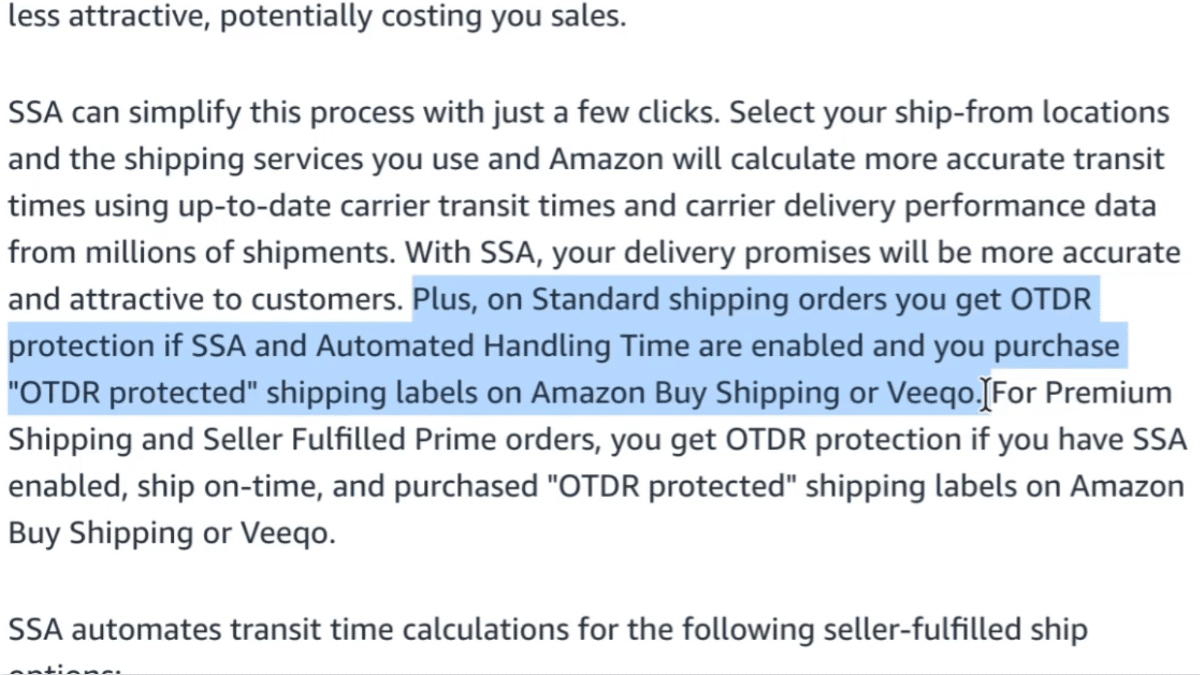
Image above: Amazon explains the requirements for OTDR protection, including Shipping Settings Automation and eligible shipping labels.
Step 10: Create and Configure Your Shipping Templates
Now let's get into the main shipping templates.
As mentioned earlier, a shipping template is the policy Amazon uses to determine where you ship, which shipping speeds you offer, and what you charge customers.
You can use one template for every product or create several different templates.
When Should You Use Multiple Shipping Templates?
Suppose your business sells two categories of products.
The first category is small, lightweight products that are inexpensive to ship.
The second category is large, bulky products that are expensive to ship and may require a different carrier or handling process.
You probably don't want to use the exact same shipping policy for both.
For the smaller products, you might offer free standard shipping with relatively fast delivery.
For the larger products, you might need longer delivery times or separate shipping charges.
You can create a shipping template for each category and assign the appropriate template to each SKU.
This allows you to configure shipping based on how different products actually need to be fulfilled.
Example Shipping Templates for Different Products
| Product Type | Example Shipping Template | Shipping Strategy |
|---|---|---|
| Small, lightweight products | Standard Products | Free standard shipping |
| Large, bulky products | Oversized Products | Longer delivery estimates or separate shipping charges |
| Perishable products | Perishable Products | Cutoff schedules that account for weekend delays |
| Products requiring faster delivery | Expedited Eligible | Additional paid shipping options |
| Pallet-shipped products | Pallet Delivery | Separate freight delivery terms |
These are examples of how a brand might organize shipping policies, not template names or configurations that Amazon requires.
Step 11: Understand Manual Shipping Template Settings
Even if you're going to use Shipping Settings Automation, it's useful to understand how the manual shipping settings work.
They explain some important concepts behind Amazon's delivery promises.
Open an existing shipping template and select Edit Template.
If manual transit time settings are available in your account, you'll see options for the shipping services and delivery regions.
Free Economy Shipping
One shipping option is Free Economy Shipping.
In the interface shown in the walkthrough, available transit time ranges included three to five business days and four to eight business days.
If you choose three to five days, the important number is the maximum of five days.
That's the maximum transit time used for the corresponding delivery promise.
Remember, handling time is separate.
If your handling time is one day and your transit time is three to five days, the customer may see a delivery estimate that allows up to six business days, subject to the applicable calendar and cutoff times.
You still have to ship the product within your handling time.
You can't use extra transit time to make up for missing the shipment deadline.
Standard Shipping
You'll also have settings for Standard Shipping.
In the walkthrough, the shipping regions included the contiguous United States, Alaska, Hawaii, and Puerto Rico.
Under the applicable standard-shipping configuration described in the source, sellers needed to offer the same standard shipping rate throughout the contiguous 48 states rather than charging different rates to individual states.
Alaska, Hawaii, and other eligible regions could have different shipping terms.
Since Amazon's regional shipping rules and available templates can change, you should confirm the requirements shown in your current account.
For example, you might offer:
- Free standard shipping to the contiguous United States
- Paid shipping to Alaska and Hawaii
- Different delivery estimates for destinations outside the contiguous United States
You can also decide whether to ship to PO boxes.
Should You Enable PO Box Shipping?
This depends on your products and shipping carriers.
For many brands, I generally lean toward disabling PO box shipping unless there's a good reason to offer it.
Some shipping services and products aren't compatible with PO box delivery.
If your business primarily uses a carrier or service that can't deliver to PO boxes, offering that option could create unnecessary fulfillment problems.
On the other hand, if you regularly ship through services that support PO boxes, enabling them could make sense.
The right answer depends on what your warehouse actually ships and which carrier services you use.
Expedited, One-Day, and Two-Day Shipping
You can also configure faster shipping methods.
For example, you might offer free standard shipping but charge extra for two-day delivery.
This can be a good way to serve customers who need their products quickly without forcing your business to absorb the higher shipping cost on every order.
You may also be able to offer one-day shipping or other premium shipping options, depending on eligibility.
Just make sure you can fulfill those orders consistently.
Offering faster shipping can help sales, but it can also create problems if your warehouse or carrier network can't meet the promises.
Pallet Delivery Shipping Templates
If your business ships oversized products on pallets, you may need a separate shipping template for those items.
Pallet shipments have different transit times, shipping costs, and operational requirements than ordinary parcel shipping.
A separate template lets you configure those terms without affecting your standard products.
If your business doesn't ship products on pallets, you probably don't need to enable these options.
There is no reason to make your shipping configuration more complicated than necessary.
Step 12: Should You Offer Free Shipping on Amazon?
This is one of the biggest strategic decisions in your shipping setup.
In the vast majority of situations, I recommend offering free standard shipping.
We've tested this with clients by comparing two ways of pricing the exact same product.
Let's say you're selling a product that costs $29.99 delivered.
You could structure the offer in two different ways.
| Option A: Separate Shipping | Option B: Free Shipping | |
|---|---|---|
| Product price | $25.00 | $29.99 |
| Shipping charge | $4.99 | $0.00 |
| Total customer pays | $29.99 | $29.99 |
| Customer-facing offer | Additional shipping charge | Free shipping |
| Results from our client testing | Generally weaker conversion | Generally stronger conversion |
The customer pays exactly the same amount either way.
But in our experience, the product with the higher advertised price and free shipping generally sells better.
We've seen this repeatedly with brands we've worked with.
Customers are often more attracted to an offer that includes free shipping, even when the total cost isn't actually lower.
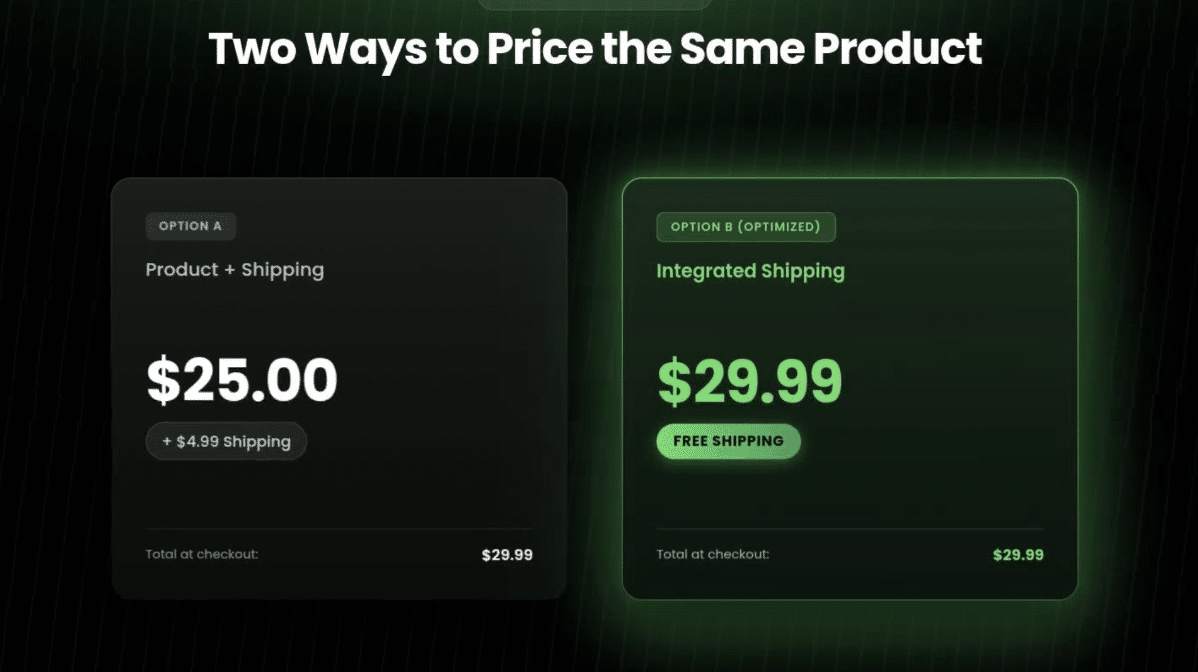
Image above: Both offers cost the customer $29.99, but the free-shipping offer has generally performed better in our client testing.
Why Free Shipping Can Help Conversion Rates
Customers don't necessarily evaluate an Amazon offer by carefully adding the product price and shipping charge together.
They may see two products with similar delivered prices, but one says Free Shipping and the other charges an extra $4.99.
The free-shipping offer can feel more attractive.
And when you're competing with other products on Amazon, these small differences can matter.
For a brand selling a high volume of products, even modest improvements in conversion rate can make a meaningful difference in sales.
When Charging for Shipping Makes Sense
There are exceptions.
For example, charging extra for shipping to Alaska or Hawaii may be reasonable because those destinations can be substantially more expensive to serve.
Charging extra for expedited or overnight shipping can also make sense.
If a customer wants a product unusually quickly, they may be willing to pay the additional cost.
Large or oversized products may also require a different pricing approach.
But for ordinary products shipping to customers in the contiguous United States, my default recommendation is generally to build the standard shipping cost into the product price and offer free shipping.
What About Faster Free Shipping?
There is another strategic question here.
The faster the delivery you can offer without increasing the customer's cost, the more attractive your product may become.
But you need to look at the economics.
Suppose you can offer customers two-day shipping, but it costs your business substantially more than a standard ground service.
That might increase your conversion rate, but it also reduces the profit you make on each order.
There's a balance between shipping cost, delivery speed, product price, and conversion rate.
For some products, paying for faster shipping may be worthwhile.
For others, the additional fulfillment cost might not justify the improvement in sales.
For a broader discussion of costs and margins, see our article on how to manage and increase Amazon profits.
The important thing is to treat shipping speed as part of your overall Amazon strategy, not just a warehouse decision.
Step 13: Set Up Shipping Settings Automation in Your Template
Now let's go through the automated option.
This is generally the approach I'd recommend for most brands using FBM.
Open your shipping template and select the option to enable Shipping Settings Automation.
Select Your Ship-From Warehouse
Amazon will ask which warehouse locations you use to fulfill orders.
If you have one warehouse, select that location.
If you use several warehouses, you may be able to select multiple locations.
The goal is to give Amazon accurate information about where orders originate.
Choose the Shipping Programs to Automate
You can then choose which eligible shipping programs you want to automate.
For ordinary FBM orders, you'll generally be working with non-Prime shipping settings.
If you're enrolled in Seller Fulfilled Prime, you may see additional shipping configuration options.
Select the Carrier Services You Actually Use
Amazon will present available shipping services.
You need to select the services your business is willing and able to use.
For example, you might select certain ground services from UPS, FedEx, or USPS.
You could also select faster services if they fit your fulfillment strategy.
The key is to select the services your warehouse actually uses, rather than simply checking every available option.
An overnight service may offer very fast delivery, but it could also be much more expensive.
You don't want to promise delivery speeds that depend on a shipping service you're unwilling to pay for.
Amazon's automation interface also explains that it may use your shipping history to help identify services and maintain accurate delivery estimates.
In the material provided for this article, Amazon's guidance states:
Please ensure all shipping services you use are selected.
That's worth paying attention to.
If you regularly use a service that isn't included in your configuration, Amazon may not have the right information to calculate the delivery estimate.
Review the Calculated Delivery Coverage
Once you've selected your services, continue through the setup.
Amazon will calculate delivery coverage and transit times based on your configured warehouse and shipping services.
Review the resulting settings before confirming them.
Once everything looks correct, confirm the configuration.
What Changes After Enabling SSA?
When SSA is enabled for eligible services, Amazon calculates transit times rather than relying on the manual estimates you previously configured.
You can still control important parts of your shipping policy, such as which regions you serve and what you charge for shipping.
You can also continue configuring eligible options such as PO box delivery.
Some services, including certain expedited or pallet delivery options, may still require separate configuration depending on what's supported in your account.
The main benefit is that Amazon can calculate more specific transit estimates without you having to manually maintain all the transit times.
Step 14: Decide Whether You Need Free Economy Shipping
One thing I typically recommend is simplifying your shipping templates.
For example, if you're already offering free standard shipping, you may not need to offer a separate Free Economy Shipping option.
Think about it from the customer's perspective.
If they can get free standard shipping, why would they intentionally choose a slower economy service that also costs nothing?
There may be some specific situations where it makes sense, but for many established brands, offering both just creates unnecessary complexity.
I generally prefer a clean setup with free standard shipping and only the additional shipping options that actually serve a useful purpose.
The same principle applies to premium services.
If your business can't reliably fulfill overnight orders, don't enable overnight shipping just because the option is available.
It's better to offer a smaller number of shipping methods that you can consistently fulfill.
Step 15: Assign the Correct Shipping Template to Every SKU
Creating a shipping template isn't the final step.
You also need to make sure your products are assigned to the correct template.
This is easy to overlook, particularly if you've created several templates for different product categories.
Here's how to check:
- Go to your inventory or Manage Products section in Seller Central.
- Find the SKU you want to configure.
- Click Edit.
- Open the Offer section.
- Find the shipping template setting.
- Select the template that should apply to that product.
- Save your changes.
Repeat this for the appropriate products.
What Happens if You Don't Assign the Template?
Amazon may continue using the default or previously assigned template.
For example, if all your products are still assigned to Migrated Template, creating an entirely new shipping template doesn't necessarily mean every SKU will automatically start using it.
You have to make sure the assignments are correct.
If you only use one template, you can often keep things simple by configuring the existing default template and using it for your products.
But if you have a special template for large products, make sure those products are actually assigned to it.
Otherwise, customers could receive shipping promises or shipping prices that don't match how you intend to fulfill the orders.
Step 16: Make Sure Tracking Numbers Are Sent Back to Amazon
This is another area where brands can run into trouble.
Remember that handling time doesn't simply mean you packaged the product or gave it to your carrier.
Amazon also needs the shipment confirmation and tracking information.
For ordinary tracked orders, you need to make sure the correct carrier and tracking number are entered in Amazon.
Manually Confirming an Order
If you're shipping a small number of orders, you can manage this directly through Seller Central.
For example:
- A customer places an order.
- You receive the order notification.
- You open Manage Orders in Seller Central.
- You purchase or print the shipping label.
- You ship the product.
- You confirm shipment and make sure Amazon has the correct tracking information.
If you're using Amazon Buy Shipping, the label and order workflow can make this process simpler.
You don't necessarily need separate shipping software to start using FBM.
For a brand that's only shipping a few orders at first, handling everything through Seller Central can work fine.
What if the Carrier or Tracking Number Is Missing?
When manually confirming shipments, Amazon may ask for the shipping service and Tracking ID.
Be careful with these fields.
For example, if you choose Other as your shipping service, Amazon may require you to enter a valid carrier name.
You may also see an option indicating that a tracking number wasn't provided by the courier.
That option shouldn't be used simply because you forgot to enter the number.
For trackable shipments, enter the actual tracking information and select the correct carrier.
Incorrect or missing tracking information can create problems with tracking performance, shipment confirmation, and potentially eligibility for shipping protections.

Image above: When confirming a shipment manually, make sure the shipping service and tracking number are correct. Only indicate that tracking was not provided when that is actually the case.
Using Shipping Software for Larger Brands
Most established brands aren't going to manually process every Amazon order in Seller Central.
They usually have an existing system that handles orders from multiple sales channels.
For example, your business might receive orders from:
- Amazon
- Your Shopify website
- Walmart
- Other marketplaces
- Other sales channels that use your fulfillment operation
Ideally, those orders flow into one central fulfillment system.
Your warehouse can then process the orders, purchase shipping labels, and send tracking numbers back to the original sales channels.
Two common tools used for this are Veeqo and ShipStation.
How a ShipStation Integration Works
Let's say your brand uses ShipStation.
A customer places an order on Amazon.
The order is automatically imported into ShipStation.
Your warehouse processes the order and purchases the shipping label.
ShipStation then sends the tracking information back to Amazon through the integration.
That helps prevent the situation where your warehouse ships the product but Amazon still thinks the order hasn't shipped.
Using Veeqo
Veeqo is another option for businesses that want to centralize their order fulfillment.
It can be particularly relevant if you're purchasing eligible shipping labels and trying to meet Amazon's OTDR protection requirements.
Make sure your Veeqo configuration is correctly connected to your Amazon seller account and that you're using eligible shipping services for orders where you expect protection.
Integrating Amazon With Shopify
If your brand already runs its ecommerce business on Shopify, another option is to use an integration such as Marketplace Connect.
This can help connect Amazon orders with your existing ecommerce workflows.
The cost and functionality of these integrations can change, so review the current pricing and features rather than assuming a particular transaction volume or pricing arrangement.
The important point is that a larger brand needs a reliable system to make sure Amazon receives accurate shipment information.
An order being shipped from your warehouse isn't enough if Amazon never receives the shipment confirmation.
Step 17: Review Your Shipping Setup Before Going Live
Before you activate FBM offers and start receiving customer orders, I'd go through the entire configuration one more time.
Here's the checklist I would use.
- Your warehouse location and contact information are correct.
- Your actual shipping services and pickup times are configured.
- Your order cutoff times match warehouse operations.
- Your Saturday, Sunday, and holiday settings are accurate.
- Your default and SKU-level handling times are appropriate.
- You've reviewed Automated Handling Time and Shipping Settings Automation.
- Your shipping templates have the intended shipping regions, services, and prices.
- Each SKU is assigned to the correct shipping template.
- You've decided whether to offer free standard shipping.
- You've reviewed Amazon Buy Shipping and OTDR protection requirements.
- Your order management system sends accurate tracking information back to Amazon.
I would also recommend testing the workflow with an actual order when practical.
Make sure the order comes through properly, your warehouse receives it, the label can be purchased, and Amazon receives the shipment confirmation.
It's much better to discover an integration problem when you're handling your first few orders than after you've shipped hundreds of orders that Amazon still thinks are unfulfilled.
Common Amazon FBM Shipping Mistakes to Avoid
There are a few mistakes I see brands make that are worth emphasizing.
1. Setting a Cutoff Time That's Too Late
A later cutoff time can help sales, but only if your warehouse can consistently meet it.
Don't choose an aggressive time that causes late shipments.
2. Promising Delivery Times That Are Too Fast
Faster delivery estimates are generally more attractive to customers.
But if your shipping services can't reliably meet those estimates, you'll create account health problems.
Use shipping information that accurately reflects your actual fulfillment capabilities.
3. Using an Unnecessarily Slow Delivery Promise
The opposite can also be a problem.
If you configure very conservative transit times, customers may see delivery estimates that are much slower than what your competitors offer.
That can cost you sales even if your product is priced competitively.
Shipping Settings Automation can help reduce this problem by calculating transit times based on the configured services.
4. Forgetting About Holidays
If your warehouse closes and Amazon still expects you to ship orders, you can end up with late shipments.
Configure operating days and closures before they become a problem.
5. Charging Separately for Standard Shipping Without Testing Free Shipping
If you're charging $25 plus $4.99 shipping, it's worth testing whether you would sell more by charging $29.99 with free shipping.
In our experience, customers generally respond better to the free-shipping option.
6. Purchasing Shipping Labels That Don't Qualify for Protection
Not every shipping label automatically qualifies for Amazon's OTDR protection.
Understand the requirements and make sure you're purchasing eligible labels through the supported workflow.
7. Shipping Products Without Confirming Them in Amazon
This can happen when fulfillment software isn't integrated correctly.
Your warehouse thinks everything is fine because the package left the building.
But Amazon may still show the order as unshipped because the tracking information was never transmitted.
Verify the integration before scaling your FBM operation.
8. Creating New Shipping Templates Without Assigning Them to Products
Just because you created a better shipping template doesn't mean all your products are using it.
Check the SKU assignments.
Quick Reference: FBM Shipping Mistakes and Solutions
| Common Mistake | Potential Consequence | Recommended Action |
|---|---|---|
| Unrealistic cutoff time | Late shipments | Match cutoff times to actual warehouse capabilities |
| Handling time too short | Missed shipment deadlines | Choose an achievable handling time |
| Delivery estimates too long | Lower conversion rates | Use accurate transit-time settings |
| Incorrect holiday schedule | Shipping delays and missed deadlines | Configure planned closures |
| Missing tracking information | Shipment confirmation and tracking issues | Verify Seller Central or software integrations |
| Incorrect shipping template | Unexpected shipping costs or promises | Check template assignment for every SKU |
| Ineligible shipping labels | Missing expected OTDR protection | Confirm label eligibility |
| Charging extra for standard shipping | Potentially weaker conversion | Consider integrating shipping into product pricing |
Should Your Brand Use FBM or Switch to FBA?
There's one final point that's worth considering.
FBM is a great option for some brands, but I generally only recommend it in specific situations.
For many businesses, FBA can be a better option because Amazon handles the individual customer shipments and can provide fast delivery through its fulfillment network.
I've seen brands significantly increase their Amazon sales simply by changing their fulfillment strategy.
For example, I once worked with a brand that was using FBM.
I convinced them to switch to FBA.
It wasn't an easy transition initially. It took some work to make the switch.
But within five months, their Amazon sales increased from approximately $70,000 per month to $140,000 per month.
That's double the monthly sales.
That doesn't mean every brand will double its sales by switching to FBA. It means the fulfillment method can have a major impact on how attractive your products are to Amazon customers.
In our experience, it's not unusual to see meaningful sales improvements when a brand switches to FBA in a situation where FBM was limiting its growth.
I've also seen brands get good results by using both fulfillment methods.
For example, a brand might use FBA for its highest-volume products while keeping FBM available for oversized, slow-moving, or specialty products that don't make as much sense to stock at Amazon's fulfillment centers.
The right approach depends on your products, margins, shipping costs, inventory, and operations.
The point is that you shouldn't assume FBM is the best strategy simply because your company already has a warehouse.
It's worth comparing the actual economics and sales opportunities of both options.
If you're considering expanding your FBA operations, our Fulfillment by Amazon guide explains the additional responsibilities involved.
Frequently Asked Questions About Amazon FBM Shipping Settings
What is the difference between Amazon FBM and FBA?
With FBM, your company or third-party fulfillment provider ships customer orders directly. With FBA, you send inventory to Amazon's warehouses, and Amazon handles the individual customer shipments.
FBM gives you more direct control over fulfillment, but it also means you're responsible for meeting Amazon's seller-fulfilled shipping requirements.
What is Shipping Settings Automation on Amazon?
Shipping Settings Automation, or SSA, is a feature that calculates estimated transit times based on your shipping locations, carrier services, and available delivery information.
Instead of manually assigning all your transit times, Amazon can calculate delivery estimates for eligible shipping configurations.
Should I enable Shipping Settings Automation?
For most brands using FBM, I recommend it.
It can help make your delivery estimates more accurate and is part of the eligibility requirements for certain Amazon OTDR protections.
You still need to configure your shipping services, operating schedule, and other fulfillment settings correctly.
What handling time should I use for FBM?
Use a handling time your warehouse can consistently meet.
If your warehouse can reliably ship orders on the same day, a zero-day handling time may be appropriate where supported.
If you normally ship on the next business day, a one-day handling time may be more realistic.
Some products may need longer SKU-specific handling times.
Can I offer different shipping policies for different products?
Yes. Amazon allows you to use multiple shipping templates and assign them to different SKUs.
For example, you might use one template for small products with free standard shipping and another for oversized products with different shipping charges and delivery times.
Is free shipping better for Amazon FBM sales?
In our experience, yes, in most situations.
We've repeatedly seen customers respond better to a higher product price that includes free shipping than a lower product price with a separate shipping charge, even when the total amount is identical.
There are exceptions, particularly for expensive shipping destinations, oversized products, and expedited services.
What happens if I ship an Amazon order late but it arrives before the promised delivery date?
You can still have a late shipment.
Amazon's handling-time requirement is separate from the final delivery promise.
If your handling time is one business day and you ship after that deadline, delivering the product quickly afterward doesn't necessarily eliminate the late-shipment issue.
Does Amazon protect me if UPS or FedEx delivers an order late?
Certain eligible orders can qualify for OTDR protection.
Amazon's described requirements include using Shipping Settings Automation and purchasing an OTDR-protected label through Amazon Buy Shipping or Veeqo, along with additional requirements that depend on the shipping program.
Check the current requirements for the specific order. The protection isn't automatic for every shipment or every account health metric.
Do I need ShipStation or Veeqo to sell FBM on Amazon?
No.
You can process orders and purchase shipping labels directly through Seller Central.
For a business shipping only a few orders, this may work well.
For larger operations managing orders from multiple channels, shipping software can make fulfillment much more efficient.
Can I change my Amazon shipping settings after my products are live?
Yes, you can update many shipping settings and templates after your products are live.
You should be careful about changes that affect delivery promises, shipping costs, or SKU assignments.
It's also a good idea to review your settings periodically as your warehouse operations, carrier services, or shipping strategy changes.
Final Thoughts: Amazon FBM Shipping Settings Can Affect Both Account Health and Sales
Setting up FBM shipping correctly is about more than just telling Amazon where your warehouse is located.
You need to think through your handling times, carrier services, cutoff times, operating days, holidays, and shipping templates.
You also need to make sure Amazon receives tracking information and that you're taking advantage of applicable delivery protections.
And from a sales standpoint, you should think carefully about free shipping and delivery speed.
These settings can make the difference between an offer that looks attractive to customers and one that loses sales because the delivery estimate is too slow or the shipping charges are too high.
My recommendation is to get the basics right first, keep your shipping templates as simple as possible, and use Shipping Settings Automation when appropriate.
Then make sure your actual warehouse operations match the promises you're making.
Finally, don't overlook the bigger question of whether FBM is even the best fulfillment option for your brand. Sometimes improving FBM settings is the right move. Other times, switching some or all of your products to FBA can make a much bigger difference.
If your situation is more complex and you want help figuring out the right shipping setup for your brand, you can reach us at customerservice@fivestarcommerce.com.