If you’re trying to create a new product listing on Amazon and Seller Central tells you “Approval Required” for your brand name—or you run into Error 5665 saying the brand name has not been approved by Amazon—this is usually a normal part of creating a new listing under a brand Amazon hasn’t approved for catalog use yet.
Amazon calls this brand name approval, and you may also hear it called catalog authorization. It gives you permission to create Amazon listings using that particular brand name.
It is not the same thing as Amazon Brand Registry.
There are a few details you want to get right before you submit the application. The biggest mistakes usually involve your UPC or GTIN, the exact spelling and capitalization of your brand name, or the product photos you upload.
If you want the visual walkthrough, the video above shows the Seller Central process step by step.
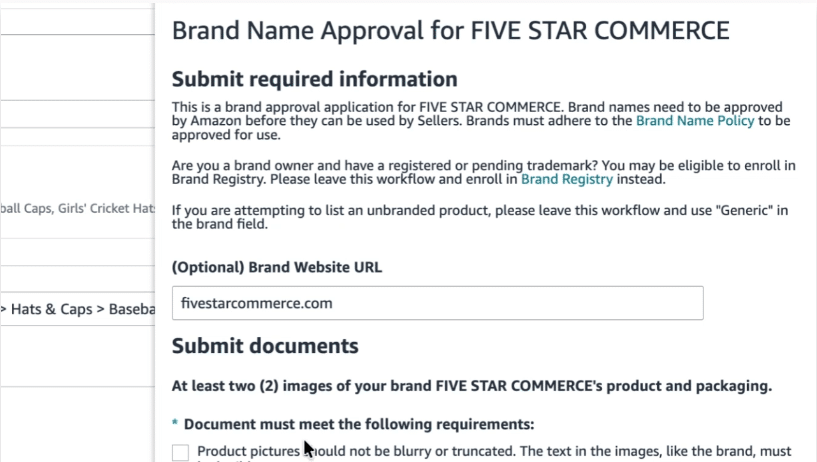
Image above: This is the top of the Amazon brand name approval application. Notice that Amazon separates this approval from Brand Registry and also tells genuinely unbranded products to use “Generic” instead.
Where the Amazon Brand Name Approval Requirement Shows Up
For a brand or seller listing its own product for the first time, you’ll normally start in Seller Central and go to Add a Product.
If it’s a completely new product, you can create it using the blank form. Amazon will ask for information such as the item name, product category, and other product details.
Soon you’ll reach the Brand Name field. This is the important part for this process.
Once you type in a brand name that you have not already received brand name approval or Brand Registry for, Seller Central may display a message saying “Approval Required.”
You may also see language explaining that Amazon restricts certain products, brands, and categories and that you need to complete the product identity fields before beginning the application.
Below that, you may see:
- 1 restriction
- 1 application required
You can then click View to open the application.
If you’re using an inventory file upload or an older version of Seller Central, the same basic issue may instead show up as Error 5665, telling you that the brand name you entered has not been approved by Amazon.
You can also review Amazon’s current brand name approval requirements and Brand Name Policy.
This particular approval message generally comes up when you are trying to create a product that has never been listed on Amazon before. If the product already exists in Amazon’s catalog, you typically will not go through this particular approval step for that listing.
So seeing the message does not necessarily mean you did something wrong.
What Amazon’s Brand Approval Messages Mean
| What You See in Seller Central | What It Means | What to Do |
|---|---|---|
| “Approval Required” | Amazon has not yet approved this brand name for use when creating this product listing. | Complete the brand name approval application. |
| “1 application required” | There is an application available for the brand restriction you just triggered. | Click View to open it—but check your External Product ID first. |
| Error 5665 / Brand not approved | This is another version of the same basic brand-name approval issue, often seen with file uploads or older Seller Central workflows. | Apply for brand name approval before creating the new listing. |
| Product already exists on Amazon | This particular approval step typically comes up when you are creating a product Amazon has not already listed. | Check whether you should add your offer to the existing ASIN rather than create a new product. |
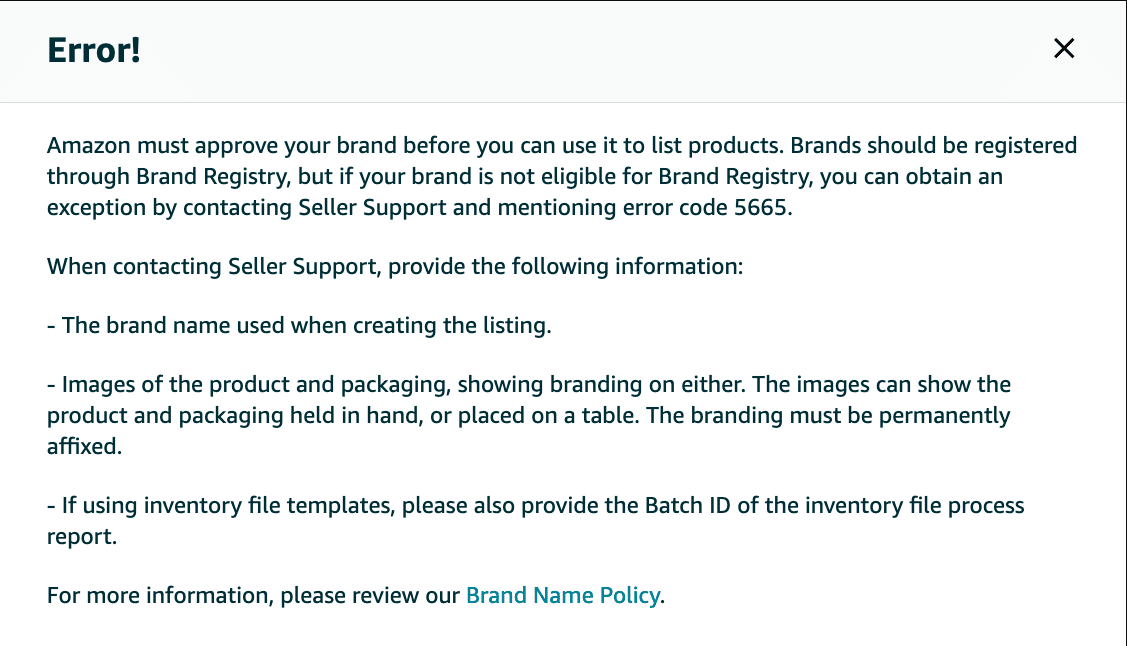
Image above: This is the type of Error 5665 message you may see when Amazon has not approved the brand name for a new listing.
Before You Open the Application, Check Your UPC or GTIN
This is one of the easiest parts of the process to get wrong.
Before clicking into the brand name approval application, look at the External Product ID section of the listing form.
If your product has an official UPC or another GTIN, select the appropriate product ID type and enter it there.
If your product does not have a product ID, use the option that says something like:
“This product does not have a product ID.”
That setting matters because the information you enter here affects what Amazon expects to see in the photographs you submit.
If you tell Amazon the product has a UPC, Amazon may expect that UPC to be physically visible on the product or packaging in your application photos.
If you don't actually have the UPC shown on the product and you submitted the application as though you did, Amazon may reject the application because the barcode is missing.
On the other hand, if you correctly tell Amazon that the product does not have a product ID, the workflow may also involve getting a GTIN exemption.
The basic rule is:
If you have a legitimate UPC or GTIN, enter it. If you don't, make sure Seller Central knows the product does not have one before you start the application.
Don't just put something into the External Product ID field to get past the form.
If you’re still deciding how to handle a product without a UPC, see our step-by-step Amazon GTIN exemption guide. Amazon also has an official guide explaining product IDs and GTINs.
UPC, GTIN, and GTIN Exemption: What to Enter Before Applying
| Your Situation | What to Do in the Listing | What Amazon May Expect in Your Photos |
|---|---|---|
| You have a legitimate UPC/GTIN | Select the appropriate External Product ID type and enter the product ID. | Make sure the barcode can be clearly seen where applicable. |
| The product does not have a product ID | Select the option stating that the product does not have a product ID. | Amazon should not be expecting a GS1 barcode that you told them exists. |
| You want a GTIN exemption | Make sure the listing accurately reflects that the product has no product ID before opening the application. | GTIN-exemption images should include the required views of the product and packaging and should not show a GS1 barcode. |
| A GS1 barcode is actually present | Use the legitimate product ID rather than claiming the product has no product ID. | Make the barcode readable in the submitted images. |
| You entered a product ID that isn't actually on the product | Correct this before submitting the application. | Otherwise Amazon may reject the application because the expected barcode is missing. |
Brand Name Approval Is Not the Same as Brand Registry
The next thing to understand is the difference between brand name approval and Amazon Brand Registry.
They overlap, but they are not the same program.
Brand name approval is the simpler process we're talking about here. Its basic purpose is to give you permission to create listings under a particular brand name.
Brand Registry is a much larger program for brand owners. It has additional requirements and gives eligible brands access to additional tools and benefits, including things such as A+ Content, Amazon Vine, additional brand-management tools, and incentives that may be available to qualifying brands.
Because Amazon changes individual Brand Registry incentives over time, check the current Amazon Brand Registry page for the benefits available when you apply.
You can also see our Amazon Brand Registry step-by-step guide or our explanation of what Brand Registry does and does not do.
If you're serious about building your own brand on Amazon, I generally recommend looking into Brand Registry too.
But you don't necessarily need to wait for that longer process before getting this approval.
You can get brand name approval now and then enroll in Brand Registry later.
There is one thing you should do before you get the brand name approved, though.
Brand Name Approval vs. Amazon Brand Registry
| Brand Name Approval | Amazon Brand Registry | |
|---|---|---|
| Primary purpose | Gives you permission to create Amazon listings under a particular brand name. | Gives eligible brand owners additional brand-management and protection tools. |
| Trademark required? | Not the same trademark-based enrollment process as Brand Registry. | Requires an eligible pending or registered trademark under Amazon's current enrollment requirements. |
| A+ Content | Not unlocked by basic brand name approval alone. | Available to eligible enrolled brands. |
| Amazon Vine | Not unlocked by basic brand name approval alone. | Available to eligible Brand Registry brands. |
| Who should use it? | Sellers who need Amazon to approve a brand name for catalog creation. | Brand owners who qualify and want the additional tools and benefits. |
| Can you do both? | Yes. You can get brand name approval first and Brand Registry later. | Yes. If your applicable catalog authorization is already handled through Brand Registry, you may not need the separate approval first. |
| Big thing to watch | Use the exact brand name you want to keep using. | Your brand information needs to line up with the applicable trademark. |
Don't Use “Generic” Just to Avoid the Brand Approval Process
If the product is actually branded, don't switch the listing to “Generic” just because Amazon is asking you for approval.
The application itself explains that sellers attempting to list a genuinely unbranded product should leave the brand-approval workflow and use Generic in the brand field. That's different from taking a branded product and calling it generic because the approval process is inconvenient.
If you're considering that route, read our explanation of why you shouldn't list a branded Amazon product as Generic before you create the ASIN.
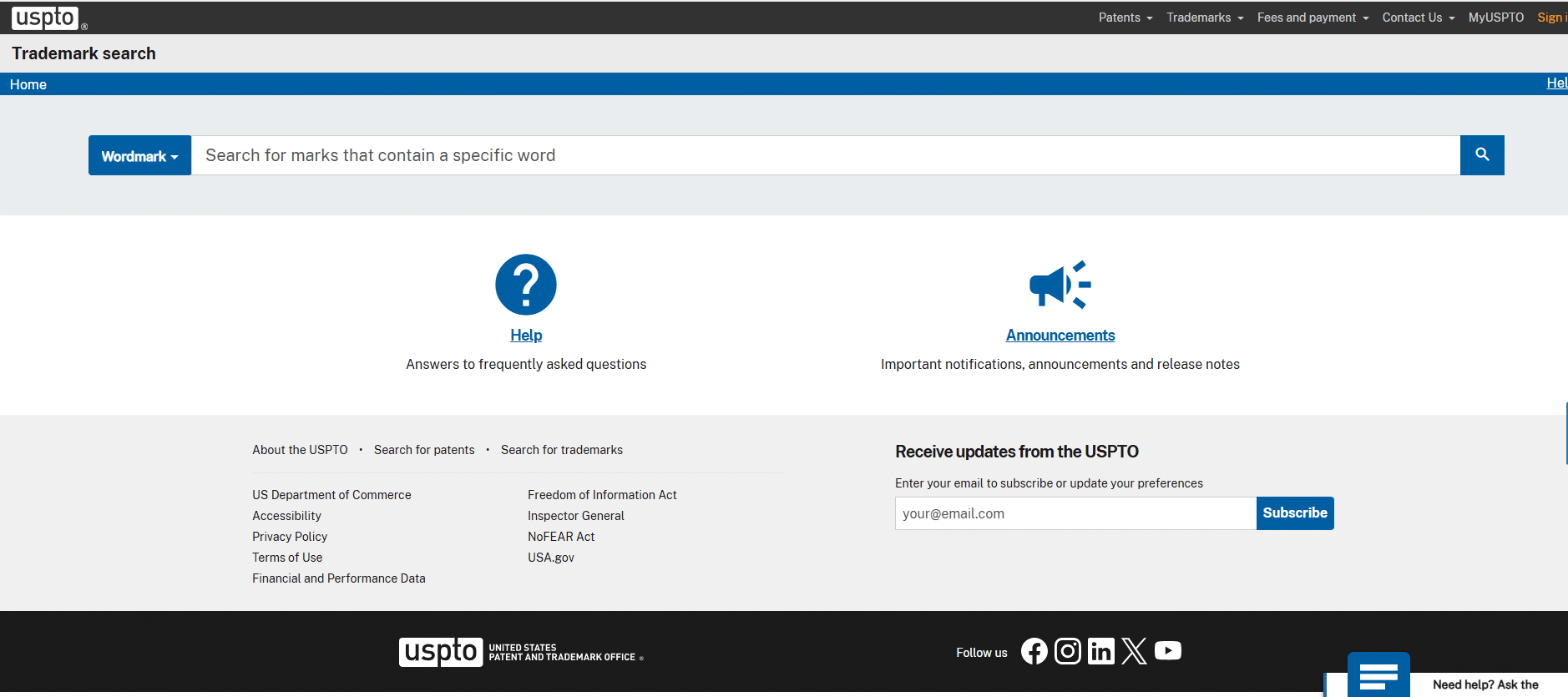
Image above: Use the official USPTO trademark search to find the correct trademark record before deciding exactly how the brand name should be entered in Amazon.
Go to the official USPTO trademark search.
Make Sure Your Amazon Brand Name Matches Your Trademark Exactly
This is probably the most important long-term consideration in the entire application.
If you already have a trademark—or there is a reasonable chance you're going to apply for one later—you want the brand name you get approved on Amazon to match that trademark as closely and consistently as required.
Pay attention to:
- Spelling
- Spaces
- Capitalization
- Hyphens
- Other characters or punctuation
You don't want to create a bunch of Amazon listings under one version of your brand name and then discover later that your trademark uses a different version.
That can create unnecessary problems when you try to enroll the brand in Brand Registry.
For example, let's say the brand is normally written casually as:
Five Star Commerce
But after checking the applicable trademark record, the version you need to use for the Amazon application is:
FIVE STAR COMMERCE
In that situation, use the version that properly lines up with the trademark rather than casually entering whatever version you normally type.
If the mark includes a hyphen, special character, different spacing, or another detail, don't ignore it.
How to Check Your Trademark on the USPTO Website
Go to the official USPTO trademark search.
Search for the trademark and make sure you've found the correct record. There can easily be several similar trademarks, so don't assume the first similar name you find is yours.
Verify that it actually belongs to you or the applicable brand owner.
Then look carefully at how the mark itself appears.
One thing that can be confusing is that certain USPTO text displays can show wording in all capital letters. The goal is to make sure you understand how the actual trademark is represented and then use the spelling, capitalization, spaces, punctuation, and other characters correctly when you enter the brand into Amazon.
Once you've confirmed the correct version, go back to Seller Central and make sure the Brand Name field uses that version.
If you've changed the name, re-enter it and reopen the brand approval application so you can verify that the application itself is now displaying the version you intend to approve.
What the Amazon Brand Name Approval Application Asks For
Once the product ID situation and brand name are correct, click View next to the application requirement.
The application explains that brand names need Amazon's approval before sellers can use them.
It may also tell you that if you're a brand owner with a registered or pending trademark, you could be eligible for Amazon Brand Registry.
If you're actually trying to create an unbranded product, the application directs you away from this workflow and toward using Generic in the brand field.
For an actual branded product, continue with the brand name approval application.
There may also be an optional field for your brand website. If you have one, you can enter it.
The main part of the application is the documentation.
Amazon asks for at least two images of the product and packaging.
Those photographs are where a lot of applications get rejected.
Amazon's Brand Approval Photo Requirements
Amazon's application gives you several requirements for the pictures.
The product photos should not be blurry or cut off. Any text that matters—especially the brand name—needs to be easy to read.
The branding on the product or packaging needs to match the brand name you are applying for.
Amazon also wants photographs that you actually took. The product can be:
- Held in your hand
- Sitting on a table
Amazon specifically warns against digitally altered or Photoshopped application images.
This is different from the photography you might normally create for an Amazon detail page.
For the customer-facing listing, you may want a beautifully lit image on a clean white background.
That is not what Amazon is asking for here.
These pictures are evidence.
Amazon wants to see that you physically have a real product and that the brand actually appears on that product or its packaging.
Don't remove the background.
Don't turn the product into a rendering.
Don't try to make these look like polished Amazon listing images.
Put the product on a real table or hold it in your hand and photograph it.
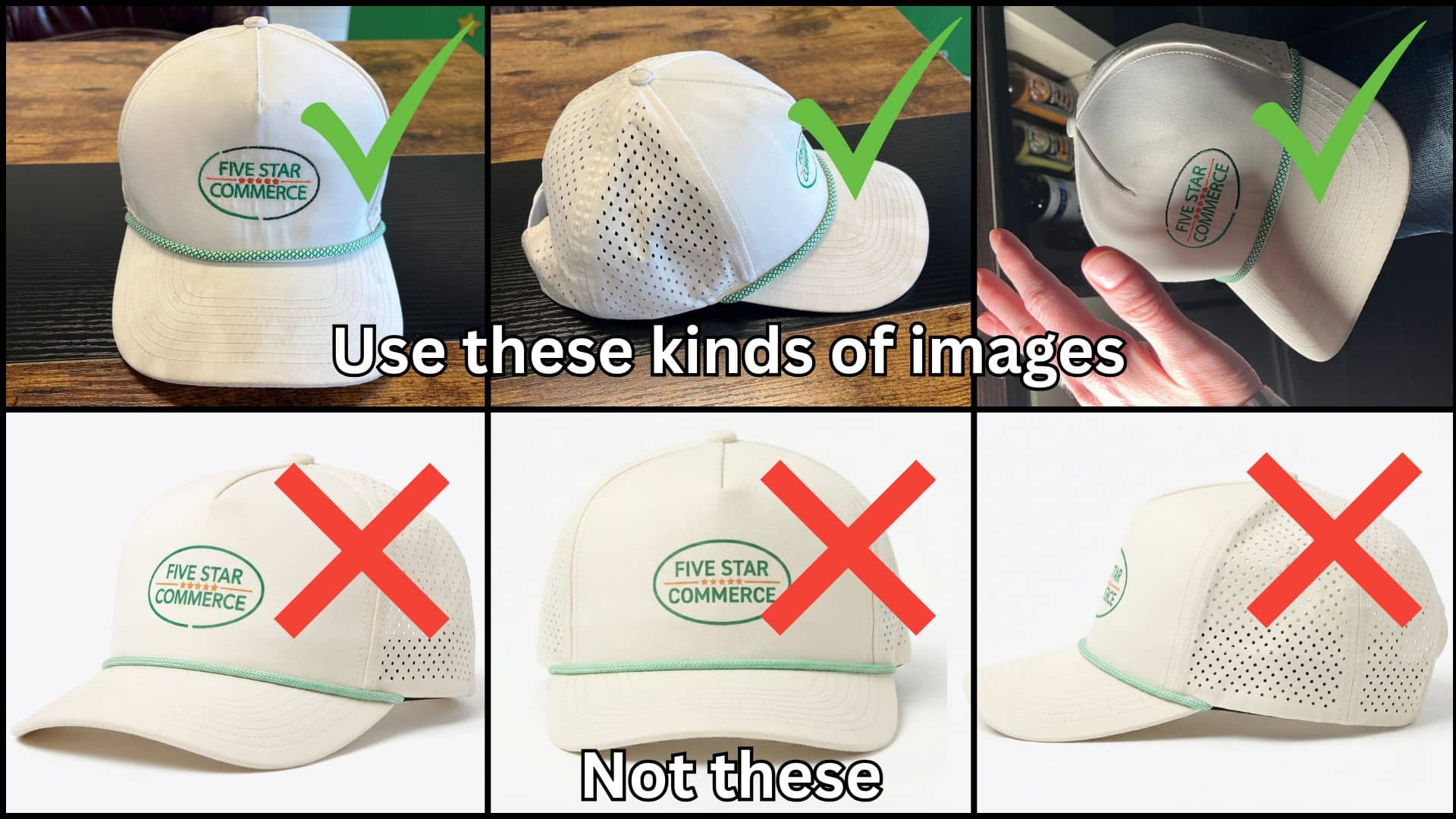
Image above: For brand name approval, use real photos of the physical product on a table or in your hand. Save the polished white-background images for the customer-facing Amazon listing.
The Brand Name Must Actually Appear on the Product or Packaging
Let's say you're applying for the brand name Five Star Commerce.
Amazon needs to see the words Five Star Commerce on the actual product or packaging.
For example, if you're using a hat as your sample product and the hat visibly says Five Star Commerce, Amazon can see that the product really carries the brand you're requesting.
If the words aren't on the product itself, branded packaging may also work.
You could have a box or bag with the brand name printed on it and photograph the product together with that packaging.
The branding needs to be something Amazon considers affixed to the product or packaging rather than something that looks temporary.
The application describes acceptable branding as something stamped, stitched, printed, or otherwise affixed so that it is not easily removable.
For apparel or jewelry, branded hang tags are acceptable under the application requirements shown in the walkthrough.
Amazon Brand Approval Photo Checklist
| Requirement | Good Example | What to Avoid |
|---|---|---|
| Brand name is readable | The exact brand name can clearly be read on the product or packaging. | Blurry, tiny, obstructed, or cut-off branding. |
| Brand name matches the application | If you applied for “Five Star Commerce,” the product or packaging visibly says “Five Star Commerce.” | Different spelling, spacing, or branding than the name being approved. |
| Real photograph | Product held in your hand or placed on a real table. | Renderings, digitally generated images, or Photoshopped branding. |
| Physical branding | Brand is printed, stitched, stamped, or otherwise physically affixed. | Adding the logo digitally after taking the photograph. |
| Packaging can be used | A real branded box or bag that appropriately goes with the product. | Packaging that obviously has nothing to do with the product. |
| Apparel or jewelry | Branded hang tags may be acceptable. | Branding that does not satisfy the application's stated requirements. |
| UPC, if applicable | Clear close-up where the barcode can be read. | Telling Amazon the product has a UPC but never showing it where Amazon expects it. |
| GTIN exemption, if applicable | Show the required sides of the product and packaging without a GS1 barcode. | Photos that hide sides Amazon asked you to provide. |
| Amazon thinks the image is altered | Try including your hand and even casting a real shadow across the branded area. | Repeatedly submitting the exact same image Amazon already rejected. |
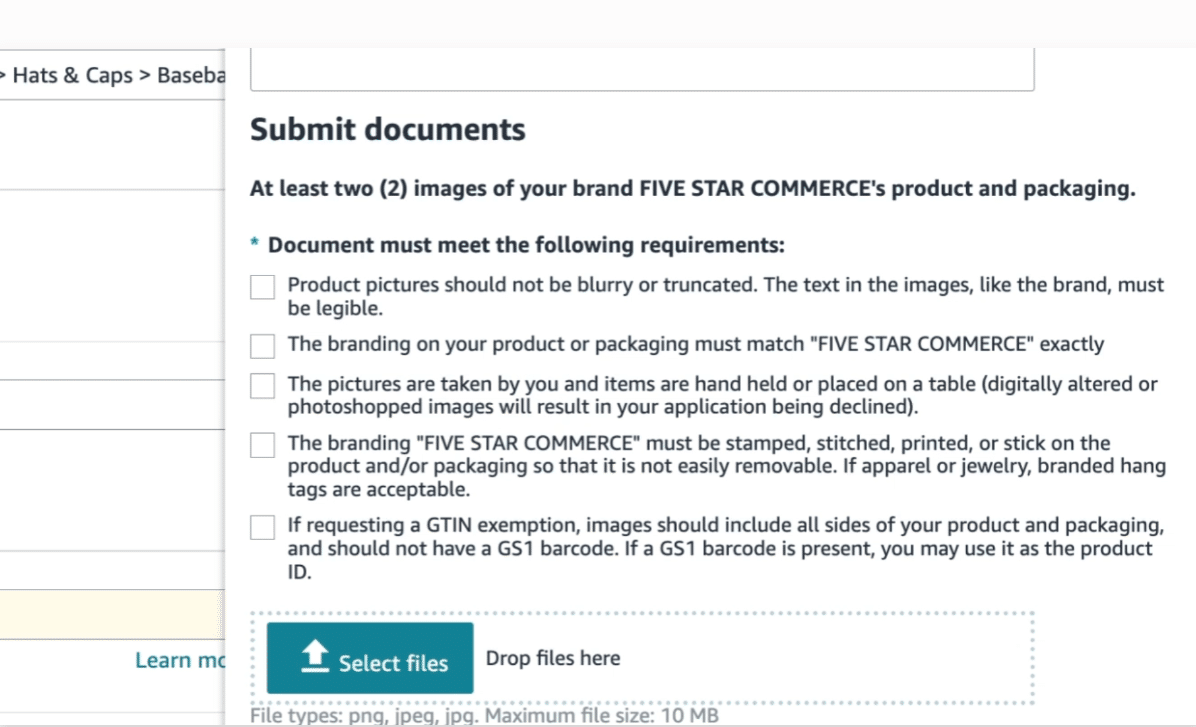
Image above: Amazon lists the photo requirements directly in the brand name approval application. Review each requirement before uploading your images.
What If None of Your Products Have the Brand Name on Them Yet?
This comes up frequently with a new brand.
You may already have the product sitting in front of you, but the production packaging doesn't have your brand name printed on it yet.
One option I've used is to get a custom branded box or custom vinyl decal made so that you have legitimate branded packaging you can photograph for the application.
If you're using a box, use one that makes sense for the product. The product should actually fit inside it.
And whatever branding you're relying on should still satisfy Amazon's requirement that the branding be affixed to the packaging.
The goal is to photograph a real physical product with real physical branding—not to add a logo to the photograph in Photoshop.
I have a separate walkthrough on getting Amazon brand approval when your existing product or packaging isn't already branded.
How to Take the Photos
Once you have a correctly branded product or package, take several photographs from different angles.
Again, these do not need to be pretty.
You can put the product on a table and take the pictures there.
Or hold it in your hand.
You want Amazon to be able to see the physical item clearly enough that there isn't any question about what they're looking at.
Make sure:
- The brand name is clearly legible.
- Important product text is not blurry.
- The product isn't cut off.
- You have multiple angles.
- The background has not been digitally removed.
- You have not Photoshopped the branding onto the image.
If you're using a UPC, also get a close-up photograph where Amazon can clearly read the UPC.
The prep materials specifically warn that Amazon may check barcode information against GS1, which is another reason not to enter a product ID you don't legitimately use.
Don't leave anything to the imagination.
A Trick If Amazon Thinks Your Real Photos Are Digitally Altered
Sometimes sellers submit photographs of a completely real product and Amazon still rejects them because the system thinks the image or branding has been digitally altered.
If that has already happened to you, one thing you can try is physically putting your hand in the shot in a way that casts a shadow across the brand name.
For example, put your hand in front of a light source so that you can visibly see the shadow falling across the physical logo.
That makes it much easier to see that the branding exists on the actual three-dimensional product and wasn't simply placed on top of the image later.
You don't necessarily need to do this for every normal application.
It's particularly useful if you already submitted legitimate photos and Amazon rejected them because it thought they were digitally altered.
If images are the reason your application was rejected, our guide to fixing rejected Amazon brand photos covers the photo-matching issues in more detail.
If You're Also Requesting a GTIN Exemption
The application includes an additional requirement for sellers requesting a GTIN exemption.
Amazon says the images should include the required views of the product and packaging and should not show a GS1 barcode.
If there is a GS1 barcode on the product, the application says you may use that barcode as the product ID instead.
This goes back to why I recommend sorting out the External Product ID field before starting the brand approval application.
Your answers in the listing form and your photographs need to tell the same story.
Review Everything Before You Submit
Once your images are uploaded, go through the application requirements one by one.
Don't just glance at them.
For each requirement, mentally verify that your photos actually prove it.
- Are the pictures clear?
- Does the brand name match exactly?
- Did you personally take the photographs?
- Is the item in your hand or on a real surface?
- Is the branding physically on the product or packaging?
- If you're requesting a GTIN exemption, did you photograph the required sides?
- If you told Amazon the product has a GS1 barcode, is that barcode visible where required?
Then enter the requested contact information and submit the application.
How Long Does Amazon Brand Name Approval Take?
At the time this walkthrough was recorded, we were usually seeing Amazon respond to these applications in around three to four business days.
That is an observed timeframe from the walkthrough, not a guarantee of how long every application will take.
I would not submit it and assume you'll remember to come back later.
Set yourself a reminder.
You can also monitor the application inside Seller Central.
How to Check Your Brand Approval Status
In Seller Central, go to:
Catalog → Selling Applications
Your application should appear there.
Brand Approval Statuses and What to Do Next
| Status | What It Means | Next Step |
|---|---|---|
| Draft | You started the application but have not completed or submitted it. | Finish reviewing the requirements and submit it. |
| Pending | Amazon is reviewing the application. | Wait for Amazon's response and check Selling Applications again later. |
| Accepted / Approved | Amazon approved the brand name. | Go back to listing creation and use the approved brand name exactly as approved. |
| Declined | Amazon rejected the application. | Review the rejection reason, correct the issue, and use the reapply option. |
If you're an administrator on the seller account, you may also receive an email notification. I would still set a reminder and check Seller Central rather than relying exclusively on the email.
What to Do After the Brand Name Is Approved
Once Amazon approves the brand name, go back and finish creating the listing.
From this point forward, make sure you type the brand name exactly the same way it was approved.
Don't casually change the capitalization or spelling later.
If you were approved as:
FIVE STAR COMMERCE
continue using:
FIVE STAR COMMERCE
rather than switching between variations such as Five Star Commerce, FiveStarCommerce, or other spellings.
If you were also trying to get a GTIN exemption, you may need to continue through that process separately. In some situations Amazon may handle the approvals together, while in others you may need to go through the product setup again for the GTIN exemption.
Do You Have to Get Brand Name Approval for Every Amazon Product?
No.
This is a one-time approval for each brand name, not an approval that you repeat for every ASIN.
Once Amazon approves a particular brand name, you can create additional products using that approved brand name without repeating this same brand approval application for every product.
If you start listing products under a completely different brand, though, you'll need approval for that other brand name too.
What If You're Selling Someone Else's Brand?
You can still need brand name approval even if you don't own the brand.
If you're trying to create a listing for another company's product and the brand hasn't already been authorized in Amazon's catalog, you can apply for the basic brand name approval as long as you actually have the physical branded product available for the application photographs.
That does not mean Amazon has necessarily approved you to sell that brand.
Those are two different issues.
Brand name approval gives you the ability to create the product in Amazon's catalog under that brand name.
Amazon may separately require approval for you as a seller to sell the brand's products.
That second application can require documentation such as:
- An invoice
- A letter of authorization from the brand
So don't assume that getting Error 5665 resolved automatically takes care of every brand restriction you might encounter.
What If Amazon Rejects the Application?
First, check the reason for the rejection.
If the problem involves your photographs, compare them carefully against Amazon's requirements.
Common problems include:
- The brand name isn't readable.
- The brand name doesn't exactly match the application.
- The product or packaging doesn't physically show the brand.
- The photos look digitally altered.
- You submitted professional renderings instead of real product photographs.
- A required UPC isn't visible.
- Your product ID settings don't match what Amazon sees in the photographs.
If Amazon says the photos appear digitally altered even though they aren't, try taking new photographs with your hand in the frame or with a visible shadow crossing the branded area.
If the application is declined, Seller Central should give you an option to reapply.
Should You Get Amazon Brand Registry Afterward?
For most serious brand owners, I would at least look into it.
Brand name approval is really just the catalog permission step.
Brand Registry gives eligible brand owners significantly more functionality.
It can provide access to things such as A+ Content, Vine, additional brand-management tools, and whatever new-seller incentives Amazon is currently offering to qualifying brands.
The important thing for this application is to think ahead.
If there's a good chance you're going to get a trademark and enroll in Brand Registry, don't create avoidable problems now by getting the wrong version of your brand name approved.
Check the trademark first.
Then use that brand name consistently.
Frequently Asked Questions
Is Error 5665 the same thing as brand name approval?
Error 5665 is one way Amazon may tell you that the brand name you're trying to use has not yet been approved. Depending on which version of Seller Central you're using and how you're creating the product, you may instead see “Approval Required” and an application link. The underlying issue is the same: Amazon needs to authorize that brand name before you can use it to create the new listing.
Do I need brand name approval for every product I sell?
No. You generally complete this one time for each brand name. If you add ten more products under the same approved brand, you don't repeat this particular application ten times.
Is brand name approval the same thing as Amazon Brand Registry?
No. Brand name approval is the simpler catalog authorization that allows listings to be created under the brand name. Brand Registry has additional requirements and gives eligible brand owners additional Amazon tools and benefits.
What if my product doesn't have a UPC?
Before beginning the application, make sure the product listing correctly says that the product does not have a product ID. You may then need a GTIN exemption. Don't enter a UPC you don't legitimately use just to get through the listing form.
What if I have a UPC?
Enter the legitimate product ID in the External Product ID section before starting the application. Make sure your application photographs also support what you've entered, including a readable view of the UPC where applicable.
Do I need professional photographs for the application?
No. In fact, this is one situation where polished listing photography can work against you. Amazon wants real photographs of the physical product or packaging. Put it on a table or hold it in your hand and make the branding easy to see.
Can the brand name just be added digitally to my photograph?
No. Amazon specifically warns that digitally altered or Photoshopped images can cause the application to be declined. The brand needs to physically appear on the product or packaging.
What if I get rejected?
Read the rejection reason and correct the underlying problem before reapplying. If Amazon objects to the images, retake them rather than repeatedly sending the same photographs. Make the brand name easier to read, show more of the physical product, and make it obvious that the branding is physically present.
The Main Things to Get Right
The brand name approval application itself is fairly simple. Most of the trouble happens because one of the details going into the application doesn't line up.
Before you submit, make sure these four things are right:
- Your UPC or GTIN situation is correct. If you have a legitimate product ID, enter it. If you don't, tell Amazon that the product does not have one.
- Your brand name is exactly what you want long term. If you have or plan to have a trademark, pay close attention to the spelling, capitalization, spaces, and punctuation.
- The physical product or packaging actually shows the brand name.
- Your application photos are real, clear, unedited photographs that prove the product exists and show the branding clearly.
Once the brand name is approved, keep using the exact approved version when you create your listings.
And if your brand is going to be a serious part of your Amazon business, the next thing I would look at is whether Brand Registry makes sense for you.
If you want a walkthrough, the video above covers this step-by-step. If you’ve got a quick question, leave a comment on the video. And if your situation is more complex and you want professional help, reach out to us at customerservice@fivestarcommerce.com or schedule an info call.