Amazon is forcing more and more sellers to use the new Seller Central platform, and one of the biggest changes is the navigation.
The main menu is not very good if you're used to the old Seller Central. You'll notice that a lot of the pages you used to be able to find pretty easily aren't sitting right there in the main menu anymore.
Fortunately, there's a really simple way to find them.
Amazon has a Site Map that gives you a much larger list of the tools and pages available inside Seller Central. Once you know where this is, you don't have to spend nearly as much time clicking around trying to figure out where Amazon moved something.
You can also bookmark many of the pages you use frequently so they show up across the top of Seller Central.
How to Find the Seller Central Site Map
The Site Map is somewhat hidden at the bottom of the main menu. Here's exactly how to get to it:
- Log in to Seller Central.
- Click the main menu icon in the upper-left corner.
- Scroll all the way down to the bottom of the menu.
- Look for the small text link labeled Site map.
- Click Site map.
That's it. The important part is scrolling all the way to the bottom. If you're only looking at the main options that appear when you first open the menu, it's easy to miss the Site Map link.

Image above: Start by clicking the main menu icon in the upper-left corner of Seller Central.
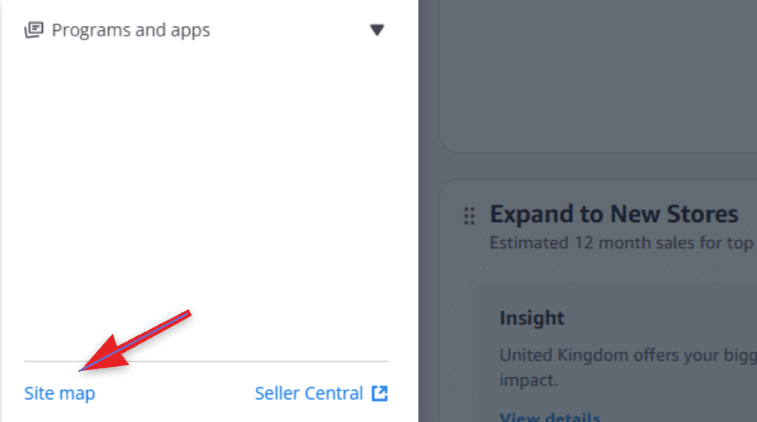
Image above: Scroll all the way to the bottom of the menu and click the small “Site map” link.
What You'll Find on the Seller Central Site Map
Once you open the Site Map, you'll see a long list of Seller Central tools organized by section.
This is useful because instead of clicking through different areas trying to guess where Amazon put something, you can look through a large portion of the Seller Central structure in one place.
You'll find sections for Products, Supply chain, Orders, Marketing, Finance, Settings, Programs and apps, Support resources, and other resources.
So if you know the name of the Seller Central page you need but can't figure out where Amazon moved it, this is a good place to look.
Quick Reference: Where Common Seller Central Tools Live
Here's a reference table showing where the different tools are located. For tools that are nested underneath another option, I've included the full path so you know what to look for.
| If You're Looking For… | Look Under… |
|---|---|
| Manage products | Products |
| Manage images | Products → Manage products |
| Manage videos | Products → Manage products |
| Add products | Products |
| Add variations | Products → Add products |
| Sell globally | Products |
| Product reports | Products |
| Manage Amazon inventory | Supply chain |
| Manage stranded inventory | Supply chain → Manage Amazon inventory |
| Manage unfulfillable inventory | Supply chain → Manage Amazon inventory |
| Manage shipments | Supply chain |
| Supply chain console | Supply chain |
| Manage orders | Orders |
| Upload order files | Orders → Manage orders |
| Resolve claims | Orders |
| Order reports | Orders |
| Seller fulfilled return reports | Orders → Order reports |
| Manage promotions and deals | Marketing |
| Manage stores | Marketing |
| Ads console | Marketing |
| Manage taxes | Finance |
| Manage VAT | Finance → Manage taxes |
| User permissions | Settings |
| Notification preferences | Settings |
| Login settings | Settings |
| Return settings | Settings |
| Gift options | Settings |
| Shipping settings | Settings |
| Tax settings | Settings |
| Supply chain settings | Settings |
| Manage your certifications | Settings |
| Manage your brands | Settings |
| Explore programs | Programs and apps |
| Selling partner appstore | Programs and apps |
| Explore services | Programs and apps |
| Get help and resources | Support resources |
| Manage support cases | Support resources |
| Strategic account services | Support resources |
| Seller university | Support resources |
| Custom analytics | Other resources |
| Virtual bundles | Other resources |
| Brand transparency | Other resources |
| Buyer seller messaging | Other resources |
That's a lot of pages, and the point isn't to memorize where all of them live.
The useful part is knowing that if you're looking for something and can't find it in the new main menu, you can open the Site Map and scan these sections instead of clicking around Seller Central trying to guess where Amazon put it.
This is basically the closest thing the new Seller Central has to the old menu structure.
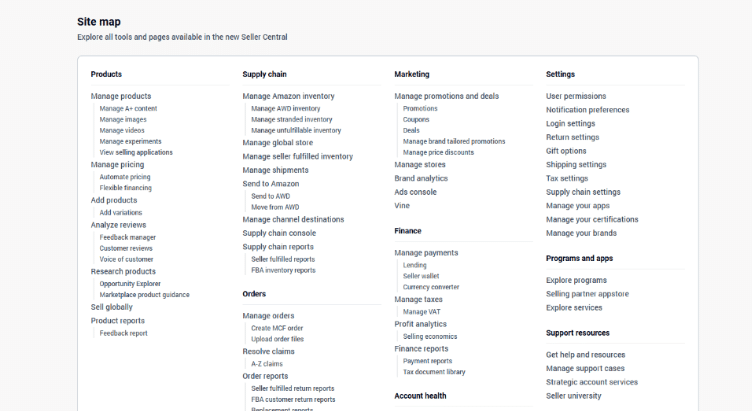
Image above: The Site Map puts Seller Central tools into sections so you can scan for the page you need instead of digging through the main navigation.
Bookmark the Seller Central Pages You Use All the Time
The Site Map makes it easier to find things, but there's still a downside: you have to make a couple of extra clicks to get there.
If there are certain Seller Central pages you visit all the time, that's where bookmarks become useful.
Visit a page you use frequently and look for the bookmark icon in the top-left area of the page. Click that icon to bookmark the page.
Once you've bookmarked it, that page can show up in the row across the top of Seller Central. That means you don't have to keep opening the menu, scrolling down to the Site Map, and finding the same page again.
Not Every Seller Central Page Can Be Bookmarked
There is one limitation here that can be confusing.
I've noticed there are quite a few pages where Amazon doesn't let you bookmark the page for some reason. You may see a message saying that the page can't be bookmarked.
If that happens, you're not necessarily doing anything wrong. The bookmark feature just doesn't work for every page.
For the pages where it does work, I would use it. For everything else, you can always go back through the Site Map.
Site Map vs. Bookmarks: Which Should You Use?
These two features really solve two different problems, so I wouldn't choose one or the other. I'd use both.
| Option | Best For | How to Access It | Limitation |
|---|---|---|---|
| Site Map | Finding a Seller Central page when you don't know where Amazon put it | Main menu → scroll to bottom → Site map | Takes a few extra clicks |
| Bookmarks | Pages you already know and visit frequently | Click the bookmark icon on a supported page | Not every page can be bookmarked |
| Main Menu | Pages that are already easy to find in the new navigation | Click the menu icon in the upper-left corner | Many familiar tools aren't immediately visible |
My basic approach is simple: use the Site Map to find things and bookmarks to avoid having to find them again.
If Amazon won't let you bookmark a particular page, just use the Site Map as your fallback.
A Simple Way to Set Up the New Seller Central
If you're getting used to the new Seller Central interface, here's what I'd do:
- Find the Site Map first. Open the main menu, scroll all the way down, and click Site map.
- Use the Site Map whenever you can't find something. Don't assume a tool disappeared just because you don't immediately see it in the main navigation.
- Bookmark the pages you use most frequently. That gives you quicker access to those pages across the top of Seller Central.
- Keep using the Site Map for pages Amazon won't let you bookmark.
That's really all there is to it.
The new navigation might require some extra clicks, but you don't have to memorize the location of every Seller Central tool. Once you know where the Site Map is, you have a much easier way to find the pages you need.
Frequently Asked Questions
Where is the Site Map in the new Amazon Seller Central?
Click the main menu icon in the upper-left corner of Seller Central. Scroll all the way to the bottom of the menu and click the small Site map link.
What does the Seller Central Site Map do?
The Site Map gives you an organized list of Seller Central tools and pages. It's particularly useful when you know which tool you want but can't figure out where to find it in the new navigation.
Can I bookmark pages in Amazon Seller Central?
Yes, on supported pages. Visit the page and click the bookmark icon. Bookmarked pages can then appear in the row across the top of Seller Central so you can get back to them more quickly.
Why won't Amazon let me bookmark a Seller Central page?
The bookmark feature doesn't work on every Seller Central page. Some pages may display a message saying that they can't be bookmarked. In that situation, use the Site Map to find the page instead.
Did Amazon remove the Seller Central pages I used to use?
If you don't see a familiar page in the main menu, check the Site Map before assuming it's gone. The Site Map contains many of the sections and pages that are no longer immediately visible from the main navigation.
The Site Map Makes the New Seller Central Much Easier to Navigate
The big thing to remember is that just because you don't see a familiar tool in the main menu doesn't mean you should spend 15 minutes clicking around trying to find it.
Main menu → scroll to the bottom → Site map.
From there, find the page you need. If it's something you visit frequently and Amazon allows you to bookmark it, bookmark it so you don't have to dig for it again.
If you want a walkthrough, the video above covers this step-by-step. And if you've got a quick question about your situation, leave a comment on the video and I'll try to point you in the right direction.