
GTIN exemptions are pretty simple—until your product doesn’t fit Amazon’s standard expectations.
That’s when applications get rejected, the error messages are vague, and Amazon gives you almost no guidance on what to fix.
My team and I apply for GTIN exemptions every month for established product brands. This guide walks through the exact application process step by step, plus the real-world edge cases that cause rejections and how to fix them.
What a GTIN Exemption Is (and What It Is Not)
A GTIN exemption allows you to create a new Amazon listing without a UPC, EAN, or ISBN when the product legitimately does not have one.
This is an exception process, not a workaround.
A GTIN exemption does not mean:
- You can ignore barcodes if your product normally has one
- You can list branded retail products without UPCs
- You can bypass category or compliance requirements
Amazon reviewers are checking three things:
- Should this product normally have a barcode?
- Does the product appear to already have one?
- Is the brand identity clear and consistent?
Before You Apply: Make Sure a GTIN Exemption Makes Sense
A GTIN exemption is not a good fit for every product.
If you’re unsure whether your brand should use a GTIN exemption, review our guide on When Do You Need a GTIN Exemption on Amazon?
Even if you get approved, you’re not required to use the exemption. This article focuses on how to apply correctly.
Why Amazon Rejects “Perfectly Good” Applications
We once worked with a brand whose application looked flawless.
The brand name was clearly printed on the product. Any human would say it matched.
Amazon rejected it.
The logo said “Flip N — Blender —” with decorative dashes on either side of the word Blender. The seller applied under “Flip N Blender.”
To Amazon, those dashes were not decoration. They were part of the brand name.
Because the brand name entered in Seller Central did not match the logo character for character, the application was rejected.
Amazon is extremely literal with GTIN exemptions.

Image above: Decorative characters like dashes count as part of the brand name. The Seller Central brand entry must match exactly.
Step-by-Step: How to Apply for a GTIN Exemption in Seller Central
Step 1: Start a New Product Listing
From your Seller Central dashboard:
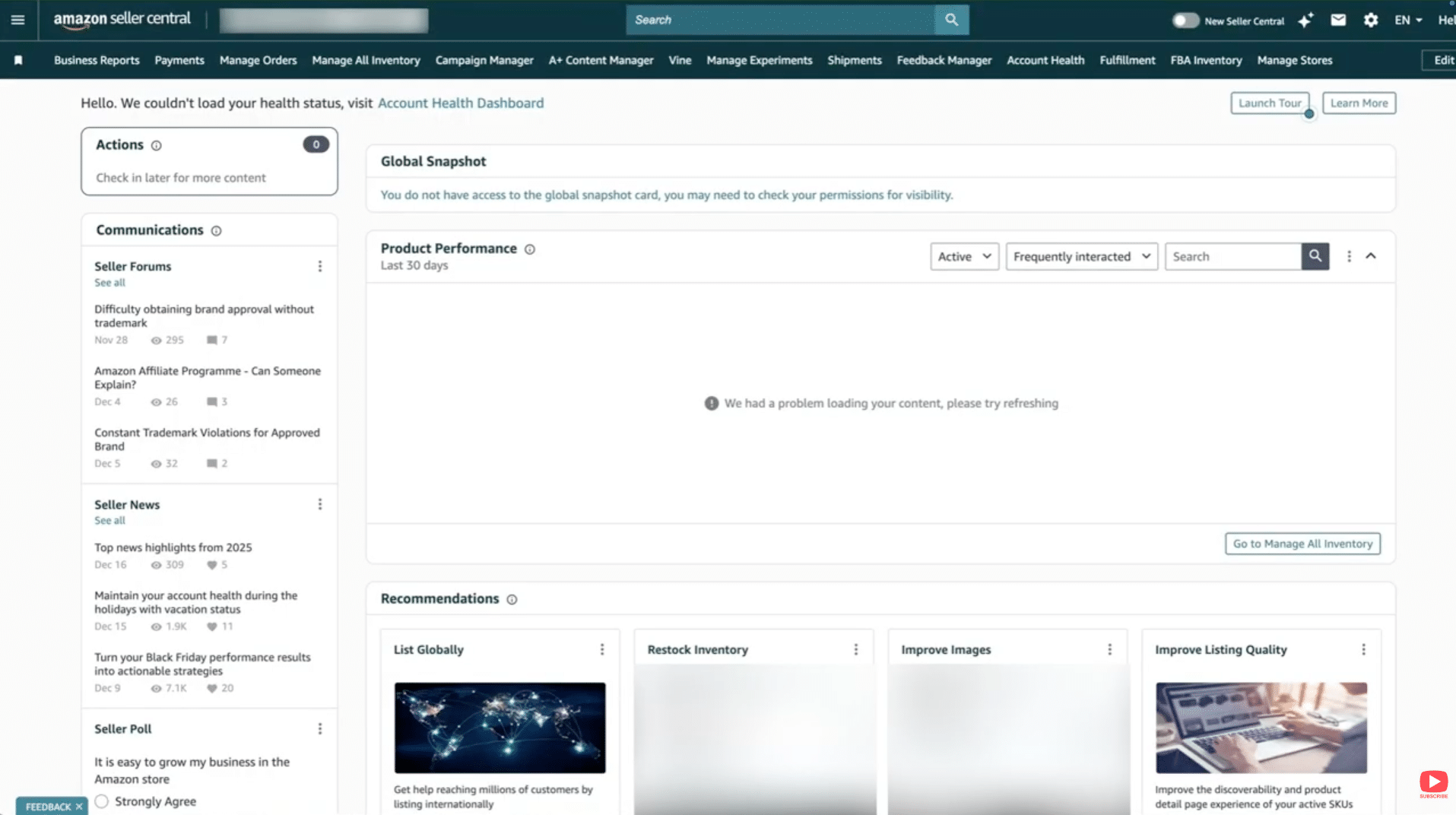
Image above: This is the main Seller Central dashboard where you’ll start the process.
- Go to Manage All Inventory
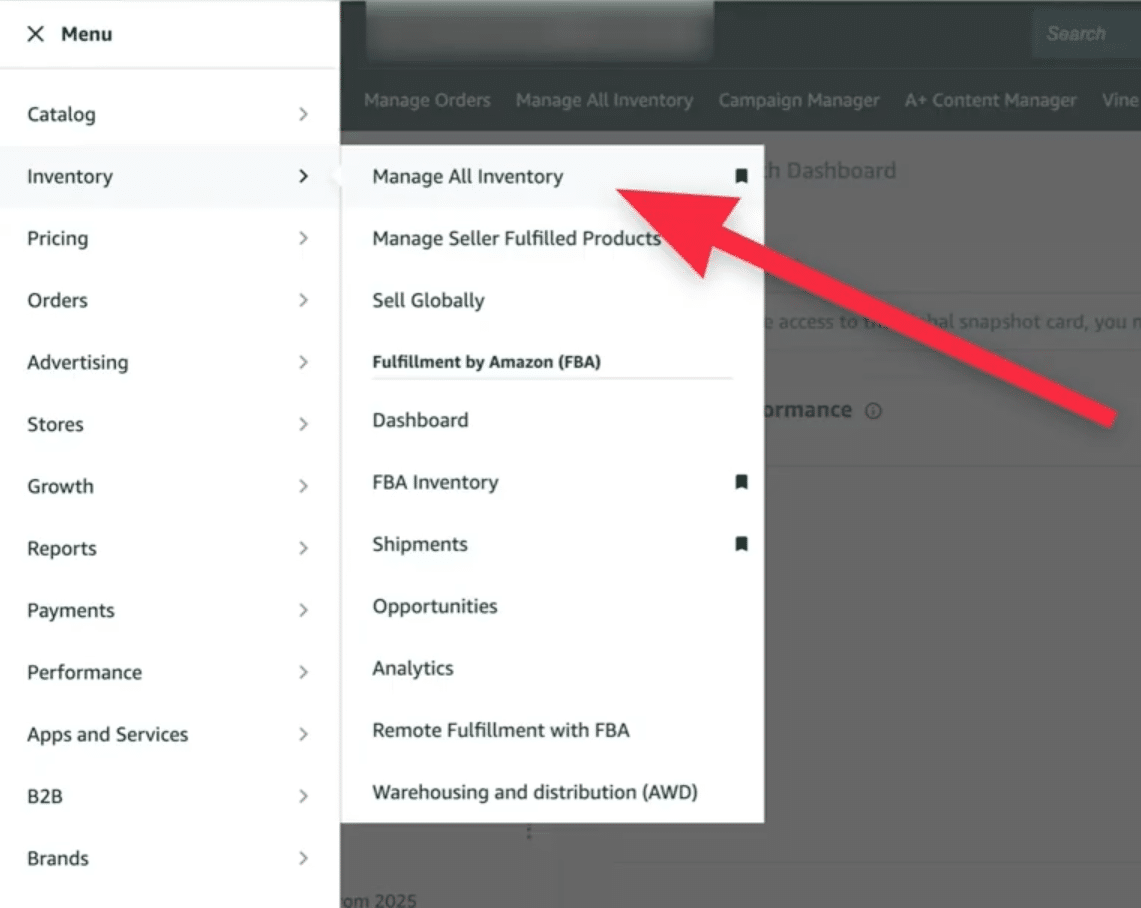
Image above: Navigate to Manage All Inventory from the Seller Central menu.
- Click Add a Product
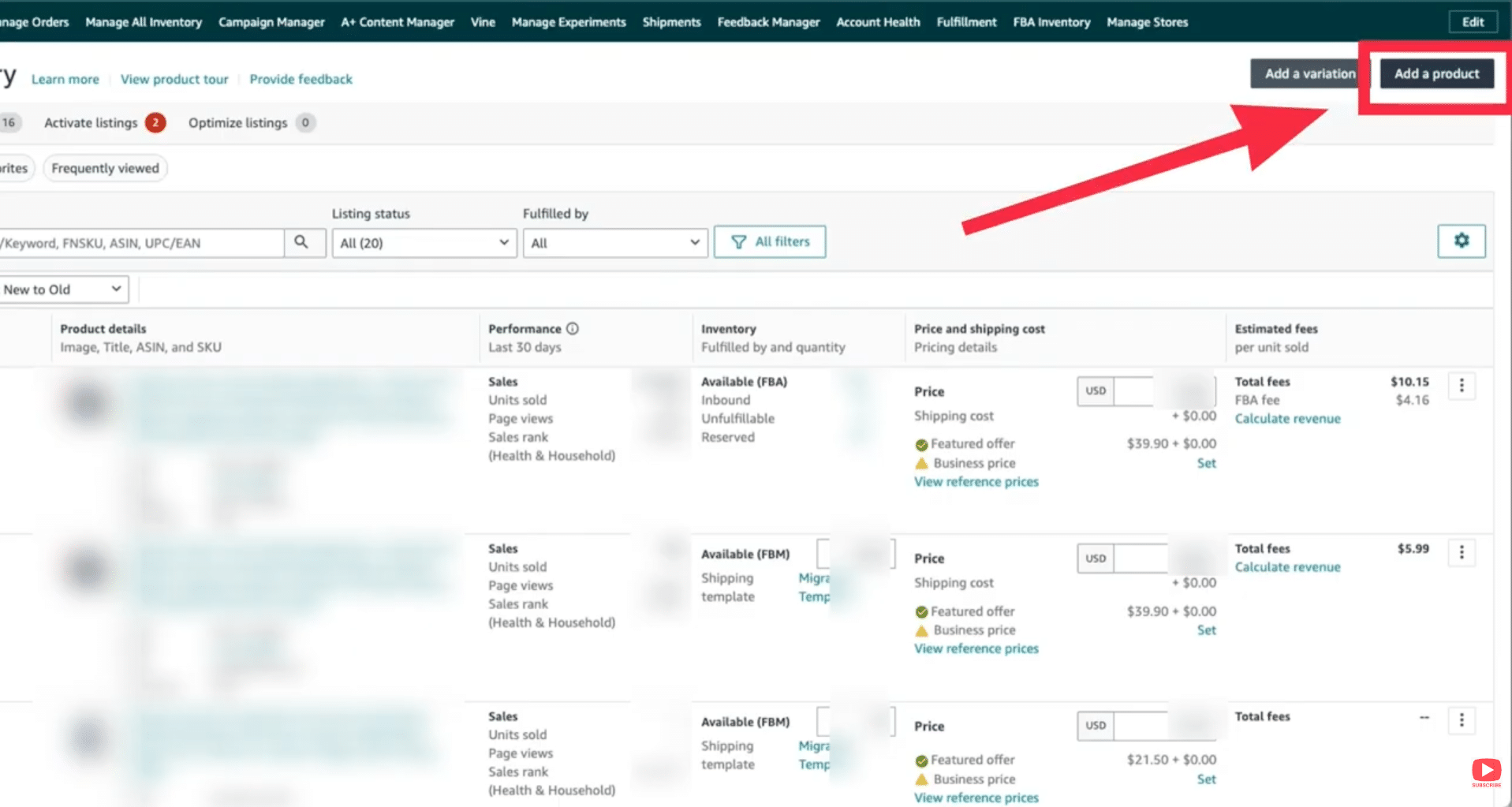
Image above: Click “Add a Product” to begin creating a new listing.
- Select Blank Form
You are not creating a live listing yet. This is just how you access the GTIN exemption workflow.
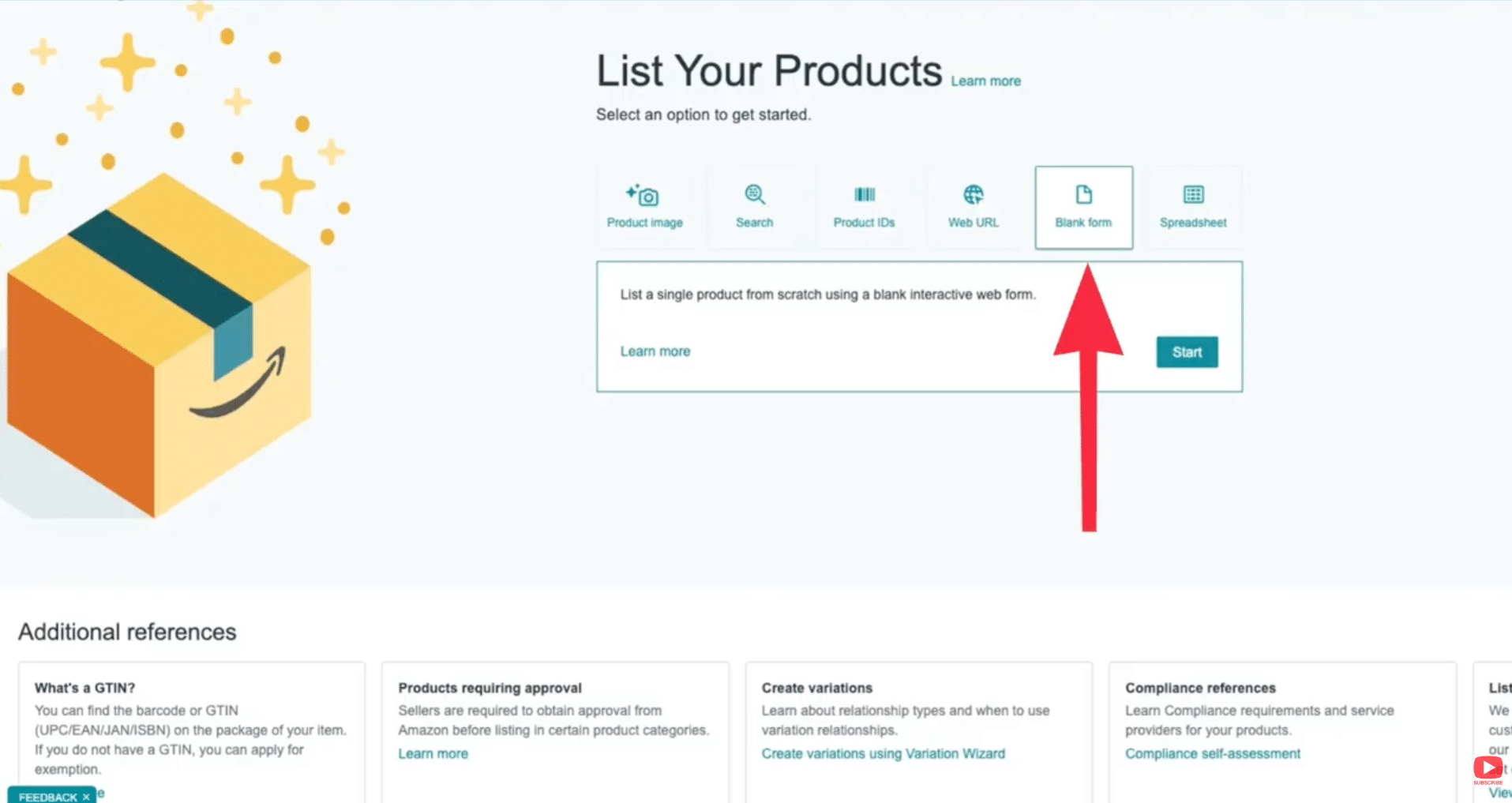
Image above: Choose “Blank Form” to start a new listing from scratch.
Step 2: Enter an Item Name and Confirm a Category
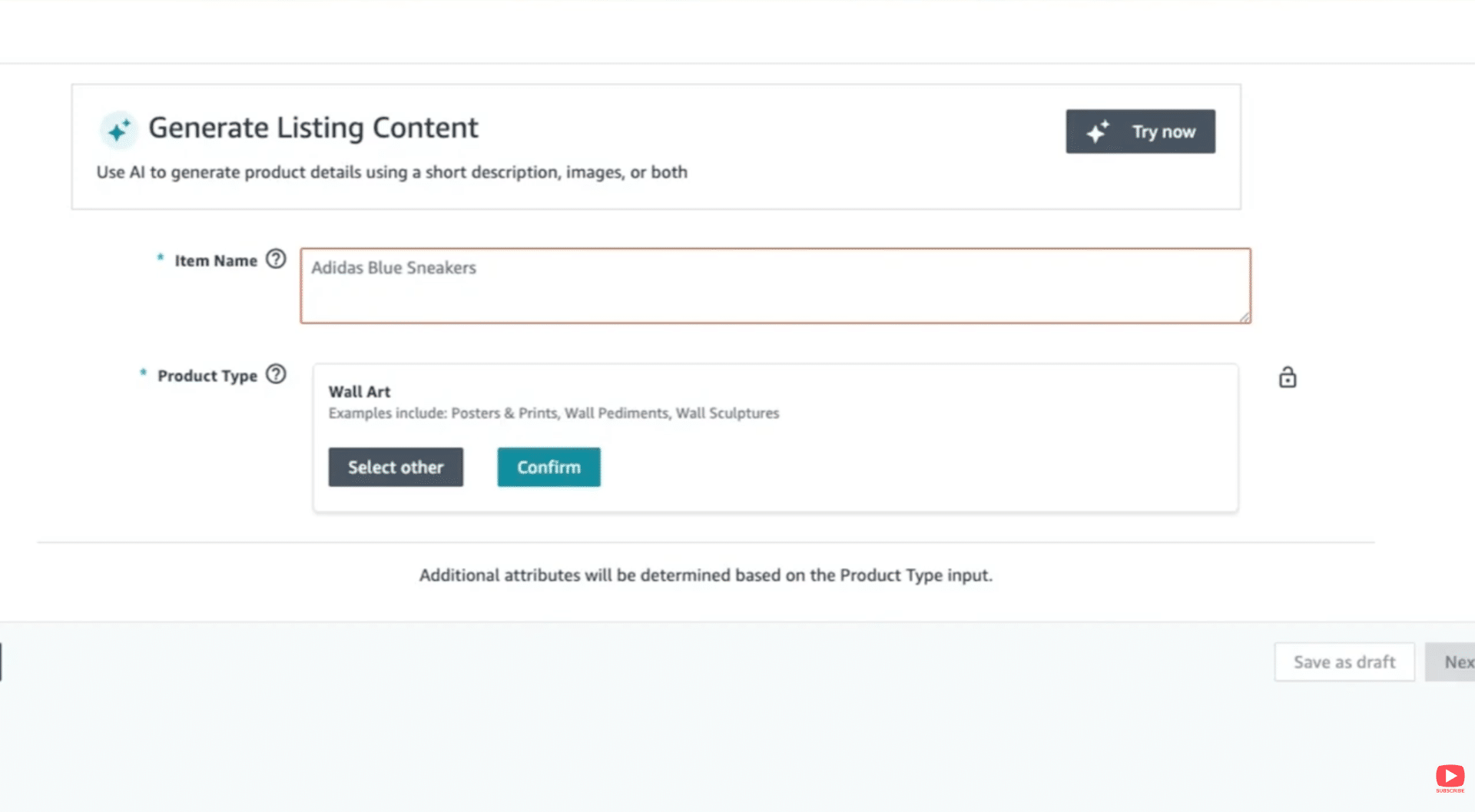
Image above: Enter a basic item name so Amazon can suggest a product category.
Enter a basic product name that accurately describes the item. This does not need to be your final product title.
Amazon uses this text to suggest a category. If it looks right, confirm it. If not, choose the closest match.
There often isn’t a perfect subcategory. That’s fine.
Step 3: Enter Your Brand Name and Trigger the Exemption
Scroll to the Brand Name and Product ID section.
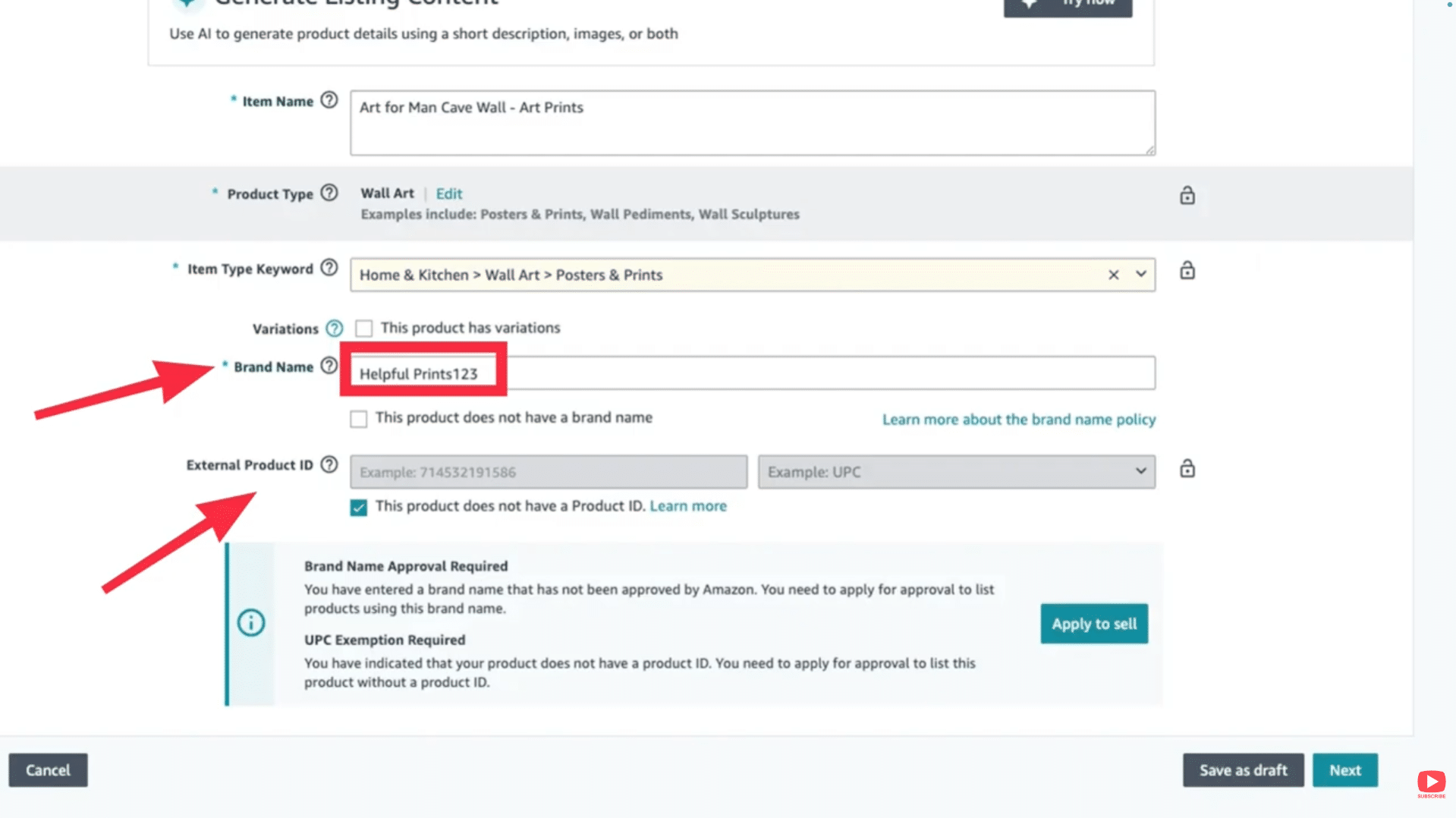
Image above: This is where entering your brand name and checking “This product does not have a Product ID” triggers the GTIN exemption.
Enter your brand name exactly as it appears on the product or packaging:
- Same spelling
- Same spacing
- Same punctuation
Then check “This product does not have a Product ID.”
This triggers both Brand Name Approval and GTIN Exemption requirements. Click Apply to sell.
The Photo Requirements (Where Most Rejections Happen)
Amazon does not want professional photos here.
Clean, edited listing images are one of the fastest ways to get rejected.
Amazon wants boring, real photos that prove:
- The product physically exists
- The branding is real and permanent
- The brand name is readable and in focus
- There are no barcodes anywhere
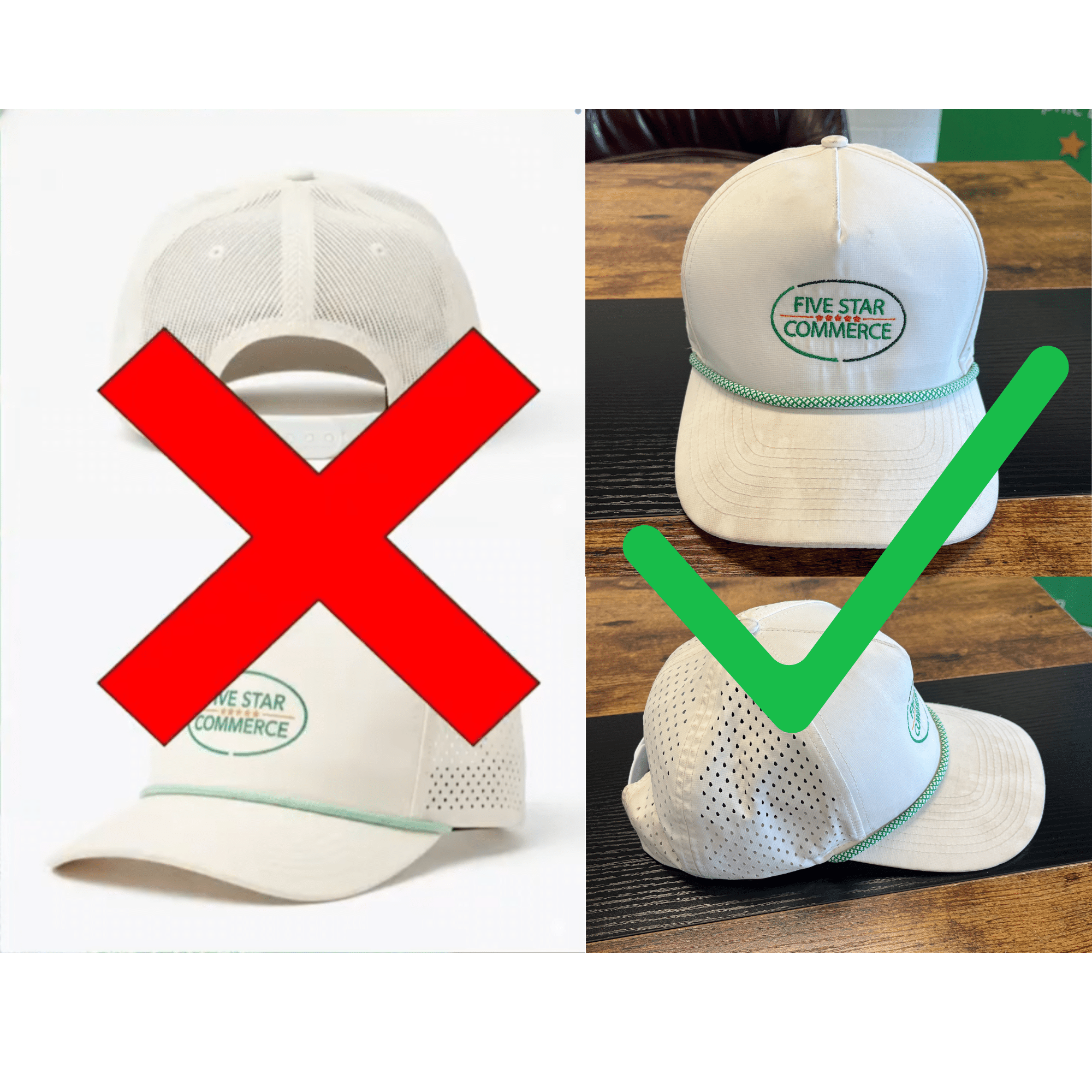
Image above: Polished listing images often get GTIN exemption applications rejected.
A Helpful Trick: Include Your Hand in One Photo
Including your hand in one photo creates shadows that help Amazon verify the branding isn’t digitally altered.
This is not required, but it dramatically improves approval rates—especially after a rejection.

Image above: Shadows help prove the logo is physically printed and not photoshopped.
Packaging Problems (and How Brands Actually Solve Them)
Amazon only requires branded packaging once to approve a GTIN exemption.
They do not re-check your packaging later.
If your product normally has no branding, that’s fine.
Etsy Vinyl Decal Workaround (When Your Product Has No Branding Yet)
If your product doesn’t have branding yet, one of the easiest workarounds is ordering a custom vinyl logo decal from Etsy.
Search Etsy for:
- “custom vinyl logo decal”
- “custom box logo sticker”
Have the seller cut a vinyl decal and apply it to a plain box. When done cleanly, this looks intentional and permanent—and Amazon approves these regularly.
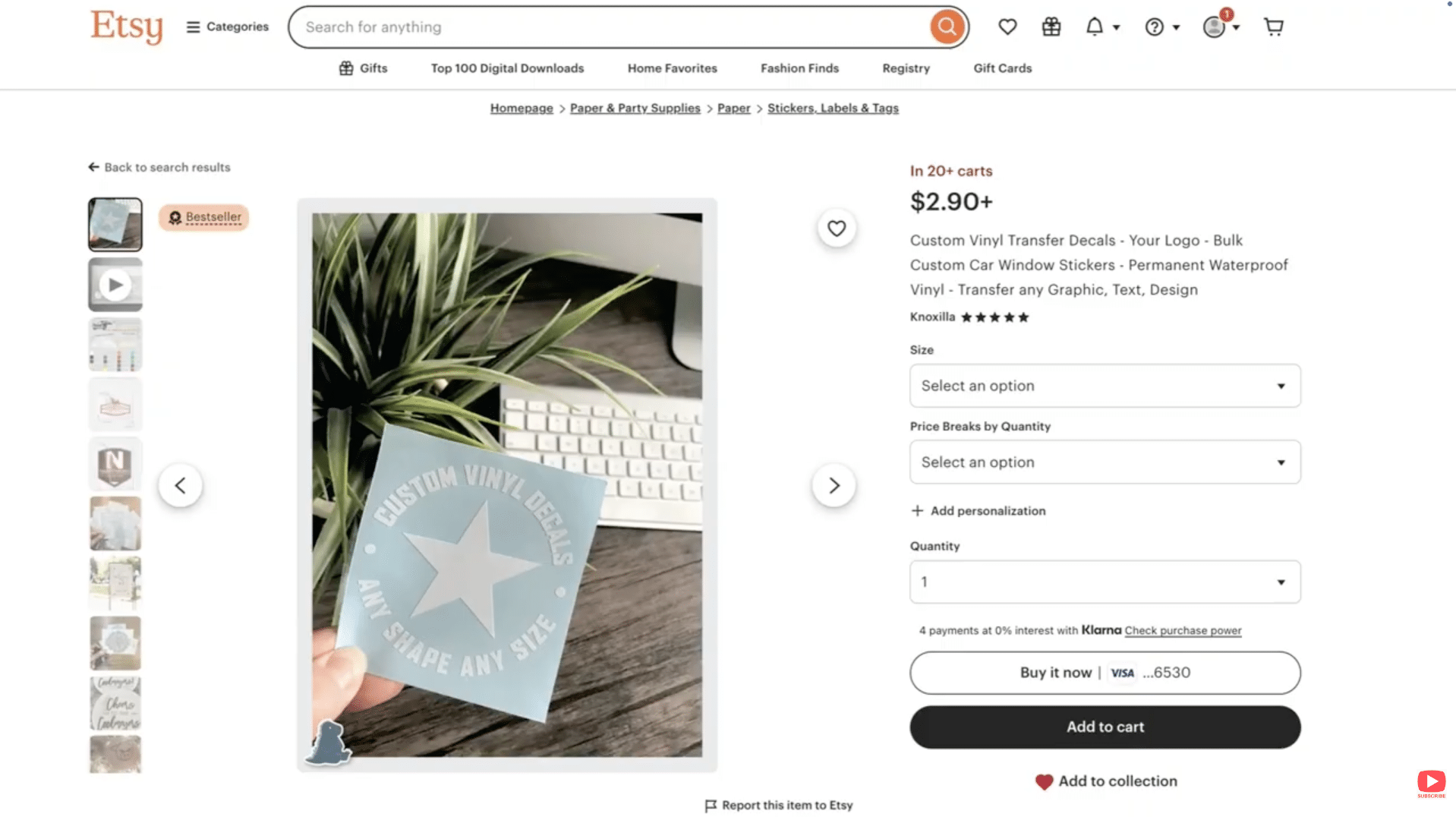
Image above: Example of the type of Etsy listing sellers use to create one-off branded packaging.
After You Submit: Approval Timelines and Status Checks
Approvals usually come back within a few days.
You can check the status in Seller Central under Catalog → Selling Applications.
If You Get Rejected
Almost every rejection comes down to one of three things:
- The brand name does not match exactly
- The photos are unclear or out of focus
- A barcode appeared somewhere it shouldn’t have
Fix one or two things, retake photos if needed, and reapply.
If you want a walkthrough, the video above covers this step-by-step. If you’ve got a quick question, leave a comment on the video. And if your situation is more complex and you want professional help, reach out to us at customerservice@fivestarcommerce.com or schedule an info call using the “Schedule info call” button on our website.