
How to Get Your Amazon Certificate of Insurance Approved (2026 Step-by-Step)
I help brands submit and get their Certificates of Insurance approved on Amazon every single month — and most rejections have nothing to do with the insurance policy itself.
If you’re here, you’ve probably already uploaded your COI in Seller Central and Amazon rejected it with a vague message saying they “couldn’t verify” something. You already have insurance. The policy is active. And yet, you’re stuck.
The key thing to understand upfront is this: Amazon is doing a strict consistency check across multiple places. If even one small detail doesn’t line up, the system will reject the submission — even if the insurance itself is perfectly valid.
Where to Find the Business Insurance Page in Seller Central
Before anything else, make sure you’re even on the right page. Amazon has two different Seller Central layouts, and the navigation is slightly different depending on which one you’re on.
| Seller Central Version | Step-by-Step Path |
|---|---|
| Classic layout | 1. Hover over the gear icon (top right) 2. Click Account Info 3. Click Business Information 4. Click Business Insurance (blue link in the middle) |
| New layout | 1. Click the circle icon with three dots (top right) 2. Hover over Settings 3. Click Account Settings 4. Click Business Information 5. Click Business Insurance |
This is the page where you upload your Certificate of Insurance and fill out the insurance form that Amazon checks against the COI.
What Amazon Is Actually Checking When You Upload a COI
Amazon is not just glancing at your certificate and approving it.
They are checking whether very specific requirements line up across three different places:
- The insurance policy itself
- The Certificate of Insurance (COI)
- The fields you manually fill out in Seller Central
If any one of those doesn’t match exactly, the submission gets rejected.
Step 1: Make Sure the Policy Itself Meets Amazon’s Requirements
At a minimum, Amazon requires a commercial general liability policy with:
- $1,000,000 per occurrence
- $2,000,000 aggregate
- Coverage for bodily injury, property damage, products liability, and completed operations
Amazon also requires the deductible to be under $10,000, and they need to be able to see it on the Certificate of Insurance.
Once you've confirmed the policy itself qualifies, you can move on knowing you're fixing paperwork — not buying new insurance.

Image above: Example of the Description of Operations section where Amazon must be explicitly listed as an additional insured.
Step 2: Common Seller Central Form Mistakes That Cause Instant Rejections
The #1 Mistake: Name of Insurer Is Filled Out Incorrectly
When Amazon asks for the Name of Insurer, many sellers enter the name of their insurance broker or agency. That is almost always wrong.
Amazon wants the actual insurance carrier — the company listed as Insurer A on the Certificate of Insurance.
If you enter the broker’s name instead of the Insurer A name, Amazon will reject the submission every time.

Image above: The Name of Insurer field in Seller Central must match the Insurer A name on the Certificate of Insurance — not the broker or producer.
Other Fields That Must Match Exactly
Amazon is doing a literal text comparison. Even small mismatches can trigger a rejection.
- Name of Insured — must match the COI exactly and match the Seller Central legal entity
- Policy Number
- Must match character-for-character
- No typos
- Policy Start and End Dates — must match exactly (watch day/month swaps outside the U.S.)
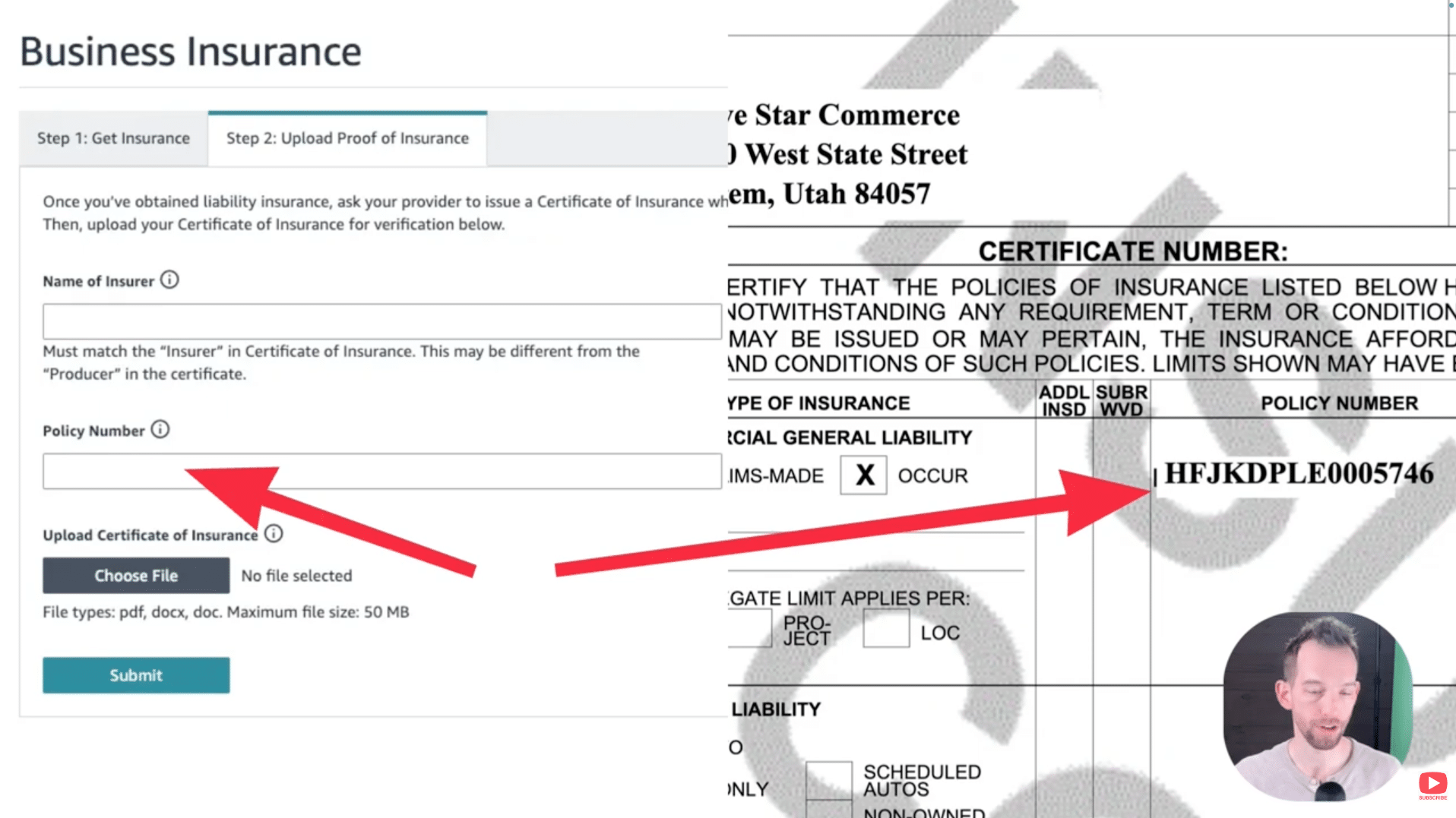
Image above: The policy number entered in Seller Central must match the policy number on the Certificate of Insurance character-for-character.
Step 3: Amazon Must Be Added as an Additional Insured — Clearly
Amazon requires that the policy name:
Amazon.com Services LLC and its affiliates and assignees
Address: P.O. Box 81226, Seattle, WA 98108-1226
This wording must be written out in the Description of Operations section. Listing Amazon only as the certificate holder is often not enough.
Step 4: The Legal Entity on the COI Must Match Seller Central
Amazon checks the legal entity name on your COI against the legal entity listed in Seller Central. If they don’t match exactly, the COI can be rejected.
| Seller Central Version | Step-by-Step Path |
|---|---|
| Classic layout | 1. Gear icon → Account Info 2. Business Information 3. Legal Entity |
| New layout | 1. Three-dot circle → Settings → Account Settings 2. Business Information 3. Legal Entity |
Final Checklist Before You Re-Submit
- Policy meets Amazon’s coverage and deductible requirements
- Name of Insurer matches Insurer A on the COI
- Name of Insured matches the Seller Central legal entity exactly
- Policy number matches with no typos
- Start and end dates match exactly
- Amazon is clearly listed as an additional insured in writing
Closing Thoughts
In most cases, COI approvals fail because Amazon can’t verify the information — not because the insurance is wrong.
If you want a walkthrough, the video above covers this step-by-step. If you’ve got a quick question, leave a comment on the video. And if your situation is more complex and you want professional help, reach out to us at customerservice@fivestarcommerce.com or schedule an info call using the “Schedule info call” button on our website.