
Amazon has introduced a new requirement for product images, A+ Content, and videos that contain photorealistic AI-generated people.
If the person shown in your media looks like a real human but was created entirely by AI, you now need to add specific metadata before uploading that file to Amazon. The required keyword is:
contains-synthetic-performer
This is an extra step, but the actual tagging process is fairly simple. The bigger challenge is making sure everyone who creates or uploads media for your brand consistently follows it.
That includes employees, freelancers, photographers, designers, agencies, and anyone else who works on your Amazon listings.
This requirement applies to new uploads going forward. Amazon has also clarified that sellers are not required to go back and update media that was already published, although it makes sense to update an older image if you are already editing or replacing it.
This Is Not a General Rule for Every AI-Generated Image
The most important thing to understand is that Amazon is not requiring every image created or edited with AI to receive this tag.
The rule applies when the finished image or video contains a person who is:
- Photorealistic
- Entirely generated by AI
- Not based on a real person
A simple way to think about it is:
Does the finished image show someone who looks like a real human, but that human was created entirely by AI?
If the answer is yes, the media needs the tag.
For example, imagine you sell a fitness product and use AI to create a realistic-looking lifestyle image of a person using it in a home gym. The person does not exist and was generated entirely by AI. That image would need to be tagged.
The same would be true if you sell apparel and use a photorealistic AI-generated model to wear the product.
It could also apply to an AI spokesperson in a product video, a generated person demonstrating how an item works, or a synthetic influencer-style video.
The fact that the person looks realistic is what matters. A clearly illustrated or cartoon-style person does not fall under this specific requirement.
When the Amazon AI-Person Tag Is Required
| Situation | Add the Tag? | Why |
|---|---|---|
| A photorealistic person was created entirely by AI | Yes | This is the main situation covered by Amazon’s requirement. |
| A photorealistic AI model is wearing or using the product | Yes | The model looks human but was generated entirely by AI. |
| An AI-generated spokesperson appears in a product video | Yes | The rule applies to qualifying videos as well as images. |
| A real person was retouched with AI | No | Amazon says real people do not require the tag, even if AI tools altered the image. |
| AI removed or replaced the background | No | AI-assisted editing alone does not trigger the requirement. |
| The image contains a cartoon or illustrated person | No | The person is not photorealistic. |
| The image contains no people | No | The disclosure specifically concerns people. |
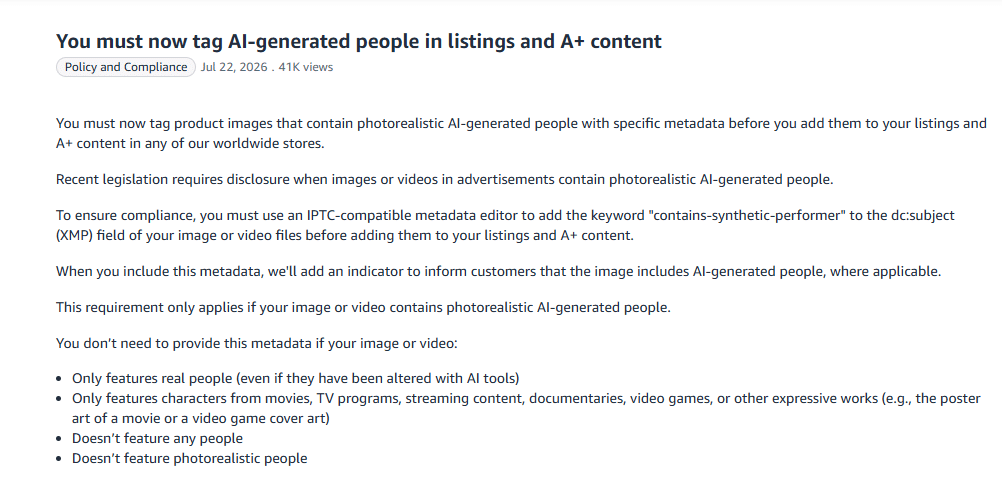
Image above: Amazon’s Seller Central announcement explains that qualifying product images and A+ Content must include the required metadata before upload.
When You Do Not Need to Add the Tag
You do not need to tag an image merely because AI was used somewhere during the editing process.
Amazon says the metadata is not required when the media:
- Only features real people, even if those people were altered using AI tools
- Only features characters from movies, television programs, streaming content, documentaries, video games, or similar expressive works
- Does not feature any people
- Does not feature photorealistic people
That means the tag would generally not be required for common editing work such as:
- Removing a background from a photograph
- Adjusting lighting or color
- Retouching a photograph of a real model
- Cleaning up part of an image
- Extending the edge of an image with generative fill
- Creating an AI-generated product-only scene with no people
- Adding effects to a photograph of a real person
- Creating a cartoon or obviously illustrated person
For example, if you take a real photograph of an employee holding your product and then use AI to improve the lighting, replace the background, or clean up the image, that is still a real person. You would not add the synthetic-performer tag just because AI tools were involved.
The requirement is specifically aimed at people who were entirely generated by AI.
What Amazon Requires You to Add
Amazon requires sellers to add the following keyword to the file’s XMP metadata:
contains-synthetic-performer
More specifically, Amazon says it must be added to the XMP dc:subject field.
For most sellers, you do not need to understand the technical structure behind XMP metadata. You just need to use a compatible tool and place the exact phrase in the correct keyword or tag field.
The spelling and hyphens matter.
Use:
contains-synthetic-performer
Do not change it to:
- contains synthetic performer
- synthetic-performer
- AI-generated-person
- contains-synthetic-performers
The safest approach is to copy and paste the exact keyword.
What the Metadata Actually Does
The metadata is not the customer-facing disclosure itself.
You are not being instructed to place visible text such as “AI-generated person” directly on the product image. Adding that type of text to a listing image could create a separate image-compliance problem depending on where the image is used.
Instead, the keyword acts as a machine-readable signal to Amazon.
Amazon says it may use that information to add an indicator informing customers that the image includes AI-generated people where applicable.
That means:
- A disclosure may not appear in every marketplace
- It may not appear in every Amazon interface
- Sellers may not immediately see a visible change
- Amazon controls the wording, design, and placement of the disclosure
- Correctly tagged media may look exactly the same after it is uploaded
Do not assume the tag failed just because you cannot see a customer-facing label on the detail page.
The important thing is that the correct metadata was included in the file Amazon received.
You can review Amazon’s current instructions in the Seller Central help page for tagging media that contains an AI-generated person.
The Requirement Applies Across Amazon’s Worldwide Stores
Amazon’s announcement says the rule applies when qualifying media is added to listings and A+ Content in its worldwide stores.
Amazon connected the policy to jurisdictions that require disclosure when advertisements contain photorealistic AI-generated people. The exact laws and disclosure requirements can vary, which helps explain why Amazon says it will display an indicator “where applicable.”
Amazon appears to be building one media-handling process that can support disclosure requirements across multiple countries and jurisdictions instead of requiring sellers to manage a completely different file for each marketplace.
That is also why it is a good idea to build this into your standard image workflow now rather than treating it as a one-time Seller Central task.
Do You Need to Update Images That Are Already Live?
Amazon has clarified that sellers are not required to retroactively tag content that was already published.
In other words, you do not need to immediately download every existing listing image, edit its metadata, and upload it again.
The requirement is mandatory for new uploads going forward.
Amazon’s forum clarification also said that it is a good practice to update older images if you are already planning to edit those listings.
For example, suppose you have an AI-generated lifestyle image that has been live on a listing for several months.
If you are leaving the listing alone, Amazon has said you do not need to go back and change it solely because of this update.
If you later revise the image, change the layout, improve the resolution, or upload a new version, you should add the required metadata before uploading that revised file.
The safest internal policy is:
Any qualifying media uploaded from this point forward should be tagged, regardless of whether it is being used on a new listing or replacing media on an existing listing.
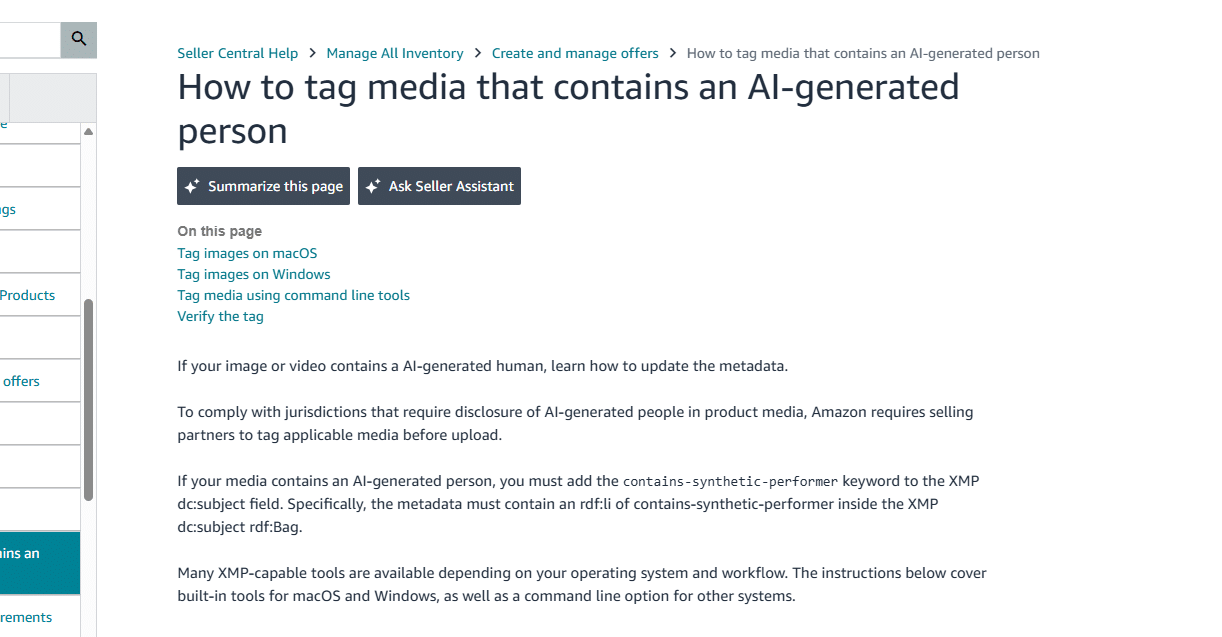
Image above: Amazon’s help page identifies the exact keyword and metadata field sellers must use for qualifying media.
How to Tag an AI-Generated Person in an Image on a Mac
On macOS, you can add the keyword using the built-in Preview application. You do not necessarily need to purchase specialized metadata software for an occasional image.
Step 1: Open the Correct Image in Preview
Locate the final image file you intend to upload to Amazon and open it in Preview.
Make sure this is the finished version. One of the easiest mistakes is to tag one file and accidentally upload a different version later.
For example, a designer might provide:
- product-lifestyle-draft.jpg
- product-lifestyle-final.jpg
- product-lifestyle-final-2.jpg
- product-lifestyle-amazon.jpg
If you add the metadata to one file but upload another, Amazon will not receive the tag.
It helps to move approved files into a clearly labeled final-upload folder before adding the metadata.
Step 2: Open the Inspector
With the image open in Preview, press:
Command + I
You can also open it through the menu by selecting:
Tools → Show Inspector
The Inspector displays technical details and metadata associated with the file.
Step 3: Open the Keywords Section
Inside the Inspector, select the Keywords tab.
If the file does not already contain keywords, Preview will normally show:
No Keywords
That is expected. It does not mean anything is wrong with the file.
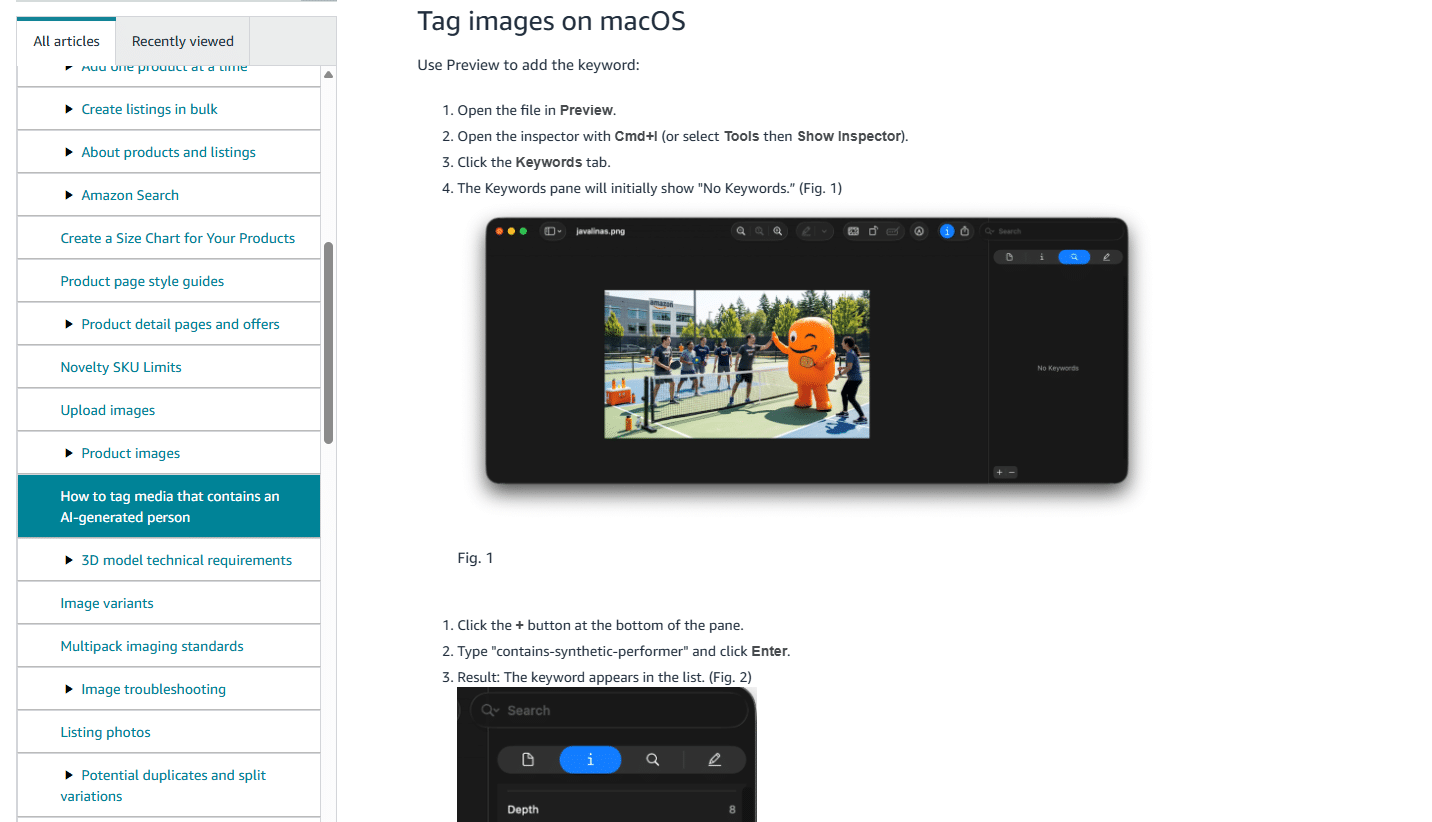
Image above: In Preview on macOS, open the Keywords area, click the plus button, and add the exact phrase contains-synthetic-performer.
Step 4: Add the Required Keyword
Click the small + button at the bottom of the Keywords pane.
Enter:
contains-synthetic-performer
Then press Enter. The keyword should now appear in the list.
Step 5: Save and Verify It
After adding the keyword, save the file.
Then close the image and reopen it, or close and reopen the Inspector. Return to the Keywords section and confirm that the exact keyword is still present.
This verification step matters because a seller could:
- Misspell the keyword
- Leave out a hyphen
- Add an accidental space
- Edit the wrong image
- Fail to save the change
- Upload a different version of the file
You should see the keyword exactly as Amazon requires it:
contains-synthetic-performer
How to Tag the Image on Windows
The Windows process is similar, but you use File Explorer instead of Preview.
Step 1: Locate the File
Find the final image in File Explorer. Make sure you are editing the exact file that will be uploaded to Amazon.
Step 2: Open Properties
Right-click the image and select Properties.
Step 3: Open the Details Tab
Select the Details tab. This section displays the file’s descriptive metadata.
Step 4: Use the Tags Field
Under the Description section, locate the Tags field.
This distinction is important: Amazon’s instructions say to use the Tags field and leave the Subject field unchanged.
Although “Subject” might sound like the correct location, Windows writes the Subject and Tags values to different metadata locations. Amazon specifically directs sellers to enter the required keyword under Tags.
Enter:
contains-synthetic-performer
Step 5: Save the Change
Click OK to save the updated metadata.
Then reopen Properties and check the Details tab again to verify that the keyword remains in the Tags field.
Do not assume it saved correctly without checking.
Mac vs. Windows Tagging Process
| Step | macOS | Windows |
|---|---|---|
| Open the file | Open it in Preview | Locate it in File Explorer |
| Open metadata controls | Press Command + I or select Tools → Show Inspector | Right-click and select Properties |
| Find the correct field | Open the Keywords tab | Open Details and locate Tags |
| Enter the keyword | contains-synthetic-performer | contains-synthetic-performer |
| Save | Save the image | Click OK |
| Verify | Reopen the Inspector and confirm the keyword remains | Reopen Properties and confirm the tag remains |
How to Add the Tag Using Command-Line Tools
Brands with larger image libraries or automated creative workflows may prefer a command-line tool.
Amazon provides an example using ExifTool, which works across different operating systems and can update XMP metadata for images and videos.
The example command is:
exiftool -XMP-dc:Subject+=contains-synthetic-performer filename.pngThe += operator appends the new keyword without replacing the file’s existing keywords.
That is helpful when an image already contains other metadata you want to preserve.
There is one warning: running the same command multiple times can add the keyword more than once. Duplicate entries may not prevent Amazon from recognizing the tag, but they unnecessarily add duplicate data to the XMP packet.
After making the change, verify that the XMP dc:subject field contains the correct value.
A technical team can use:
exiftool -G1 filename.png | grep SubjectThe result should show:
Subject: contains-synthetic-performer
The Easier Option in A+ Content and Creative Assets
Amazon offers a simpler method in parts of A+ Content Manager and the Creative Assets workflow.
When uploading an image, you may see options such as:
- AI-generated
- AI-generated people
If the image contains a photorealistic person who was entirely generated by AI, select AI-generated people.
Amazon says it will apply the necessary metadata for you.
The normal workflow is:
- Open the relevant A+ Content or Creative Assets area.
- Choose the option to add or upload an image.
- Select the finished image file.
- Add the required alt text.
- Select the checkbox for AI-generated people.
- Add or save the image.
Do Not Assume Every Amazon Image Uploader Adds the Tag for You
The automatic checkbox is not necessarily available in every image-upload interface.
If you upload a regular product image directly to a listing and Amazon does not show an AI-generated-people option, you need to add the metadata to the file before uploading it.
Do not assume Amazon will detect the person and add the tag automatically.
- If Amazon gives you the “AI-generated people” checkbox, use it.
- If it does not, tag the file yourself before uploading.
Tagging Methods Compared
| Method | Where the Tag Is Added | Best Use |
|---|---|---|
| macOS Preview | Keywords section in the Inspector | Occasional image tagging on a Mac |
| Windows File Explorer | Tags field under Properties → Details | Occasional image tagging on Windows |
| Creative Assets or A+ Content | Amazon applies the metadata after the checkbox is selected | Assets uploaded through a supported Amazon interface |
| ExifTool or another XMP tool | XMP dc:subject field | Bulk workflows, technical teams, images, and videos |
This Rule Also Applies to Videos
The requirement is not limited to still images.
Amazon’s shoppable-video guidance says qualifying videos must also contain the contains-synthetic-performer keyword in the appropriate XMP metadata field.
This could include:
- An AI-generated spokesperson discussing the product
- A synthetic person demonstrating how the product works
- A photorealistic AI model wearing apparel
- An AI-generated lifestyle scene containing realistic people
- A synthetic influencer-style product video
The same basic test applies:
- Does the video contain someone who looks like a real person?
- Was that person generated entirely by AI?
- Is the person not based on a real individual?
If the answer to all three is yes, the video needs the disclosure metadata.
Common Mistakes and How to Avoid Them
| Mistake | Why It Causes Problems | Better Process |
|---|---|---|
| Tagging every image created with AI | The rule does not apply to every AI-assisted image. | Only tag media containing a photorealistic person generated entirely by AI. |
| Typing the keyword incorrectly | Amazon may not recognize the metadata. | Copy and paste contains-synthetic-performer exactly. |
| Tagging one version and uploading another | The uploaded file will not contain the metadata. | Store tagged files in a clearly labeled final-upload folder. |
| Using the Windows Subject field | It writes to a different metadata location. | Use the Tags field. |
| Failing to verify the saved metadata | The edit may not have saved correctly. | Close and reopen the file before uploading. |
| Assuming Amazon always adds the tag automatically | Not every upload area includes the checkbox. | Add the metadata manually when the option is unavailable. |
| Forgetting about videos | The rule is not limited to still images. | Review AI spokesperson and demonstration videos too. |
What to Tell Freelancers, Designers, and Agencies
Brands should update their creative instructions immediately.
Do not rely on every outside contractor to have seen Amazon’s announcement.
Any final image or video containing a photorealistic person who was generated entirely by AI must include the XMP keyword contains-synthetic-performer before delivery, unless the asset will be uploaded through an Amazon workflow where the “AI-generated people” option is selected.
You should also require the person delivering the asset to tell you whether it includes:
- A real person
- A real person altered with AI
- An entirely AI-generated photorealistic person
- A non-photorealistic or illustrated person
- No people
That removes guesswork for the employee responsible for uploading the media.
At Five Star Commerce, we are implementing this requirement in our own image workflows as well.
A Practical Workflow for Brands
| Stage | What to Check | Action |
|---|---|---|
| Creative review | Does the media contain a person? | If no, no synthetic-performer tag is needed. |
| Person classification | Is the person photorealistic? | If no, the tag is not required. |
| Source verification | Was the person generated entirely by AI? | If yes, continue to tagging. |
| Upload planning | Does Amazon provide an AI-generated-people checkbox? | Use it when available. |
| Manual tagging | Is the checkbox unavailable? | Add contains-synthetic-performer to the file metadata. |
| Quality control | Was the exact keyword saved? | Reopen the file and verify it. |
| File management | Is this the final upload version? | Move it into an approved-assets folder. |
| Upload | Is the correct tagged file selected? | Upload only the verified version. |
A Simple Decision Checklist
- Does the media contain a photorealistic person?
- Was that person generated entirely by AI?
- Is the person not based on a real individual?
- If all three answers are yes, did we add contains-synthetic-performer or select Amazon’s “AI-generated people” option?
- Did we verify that the metadata was saved before uploading?
You do not need to tag every image made with AI.
You need this specific disclosure when the media contains a photorealistic person who was created entirely by AI.
How Quickly Will Amazon Enforce This?
I would not assume that Amazon will enforce the new requirement perfectly or consistently from the first day.
New Amazon processes are often introduced gradually. Different upload tools, marketplaces, and enforcement systems may not all behave the same way immediately.
Still, that is not a reason to wait.
The requirement has been announced, Amazon has published instructions, and the correct tagging process is relatively small. Brands should start complying now rather than waiting until files are rejected or listings are affected.
Amazon has not provided a guaranteed enforcement schedule in the materials reviewed for this article. The practical response is to build the step into your process now.
Frequently Asked Questions
Do I need to tag every image generated with AI?
No. The tag is required when the final media contains a photorealistic person who was generated entirely by AI and is not based on a real person.
Do AI-edited photos of real people need the tag?
No. Amazon says media that only features real people does not require the tag, even when those people have been altered using AI-powered tools.
Does an AI-generated cartoon person need the tag?
No. The rule applies to photorealistic people. Clearly illustrated, stylized, or cartoon people do not require this particular metadata.
What exact keyword should I use?
Use contains-synthetic-performer. Enter it exactly as shown, including both hyphens.
Where does the keyword go?
Amazon says it belongs in the XMP dc:subject metadata field. On a Mac, add it through the Keywords section in Preview. On Windows, add it to the Tags field under File Properties → Details.
Do I need to place visible disclosure text on the image?
No. The keyword is machine-readable metadata. Amazon says it will use that metadata to add an indicator for customers where applicable.
Can Amazon add the metadata for me?
In some A+ Content and Creative Assets upload flows, yes. Select the AI-generated people option when it is available, and Amazon says it will apply the necessary metadata.
Does this apply to videos?
Yes. Qualifying videos containing photorealistic people generated entirely by AI also need the metadata.
Do I need to update old images already on my listings?
Amazon has said sellers are not required to add the information retroactively to content that was already published. Compliance is required for new uploads going forward.
What should I do after adding the tag?
Reopen the file and verify that the exact keyword was saved. Then make sure you upload that specific version rather than an earlier draft.
Start Adding This to Your Image Process Now
This is not a difficult Amazon requirement, but it is easy to forget.
The actual metadata change takes less time than creating or editing the image. The risk comes from an inconsistent workflow: one designer adds the tag, another does not, or an employee uploads the wrong version.
Create a written rule, tell every person who handles your creative assets, verify the metadata, and clearly separate approved files from drafts.
If you want a walkthrough, the video above covers this step-by-step. If you’ve got a quick question, leave a comment on the video. And if your situation is more complex and you want professional help, reach out to us at customerservice@fivestarcommerce.com or schedule an info call using the Schedule info call button on our website.